This guide was originally written for moving from Universal Analytics to GA4. The current Google Analytics integration in Tidio connects to GA4. Use the steps below to check your connection or update its Google tag ID.
In this article, you'll learn:
- When to migrate from Google Analytics to Google Analytics 4 (GA4)
- How to migrate from Tidio's Universal Analytics integration to GA4 integration
- What events can I track in Tidio?
When to migrate from Google Analytics to Google Analytics 4 (GA4)?
You should migrate your Google Universal integration to GA4 in Tidio when:
- You have Tidio enabled on your website
- You need to set up the Google Analytics connection in Tidio or update the property it sends events to. You can edit an active GA4 connection without uninstalling it.
- You have a GA4 property in Google Analytics how to check if you have GA4 enabled? Read this article from Google.
How to migrate from Tidio's Universal Analytics integration to GA4 integration
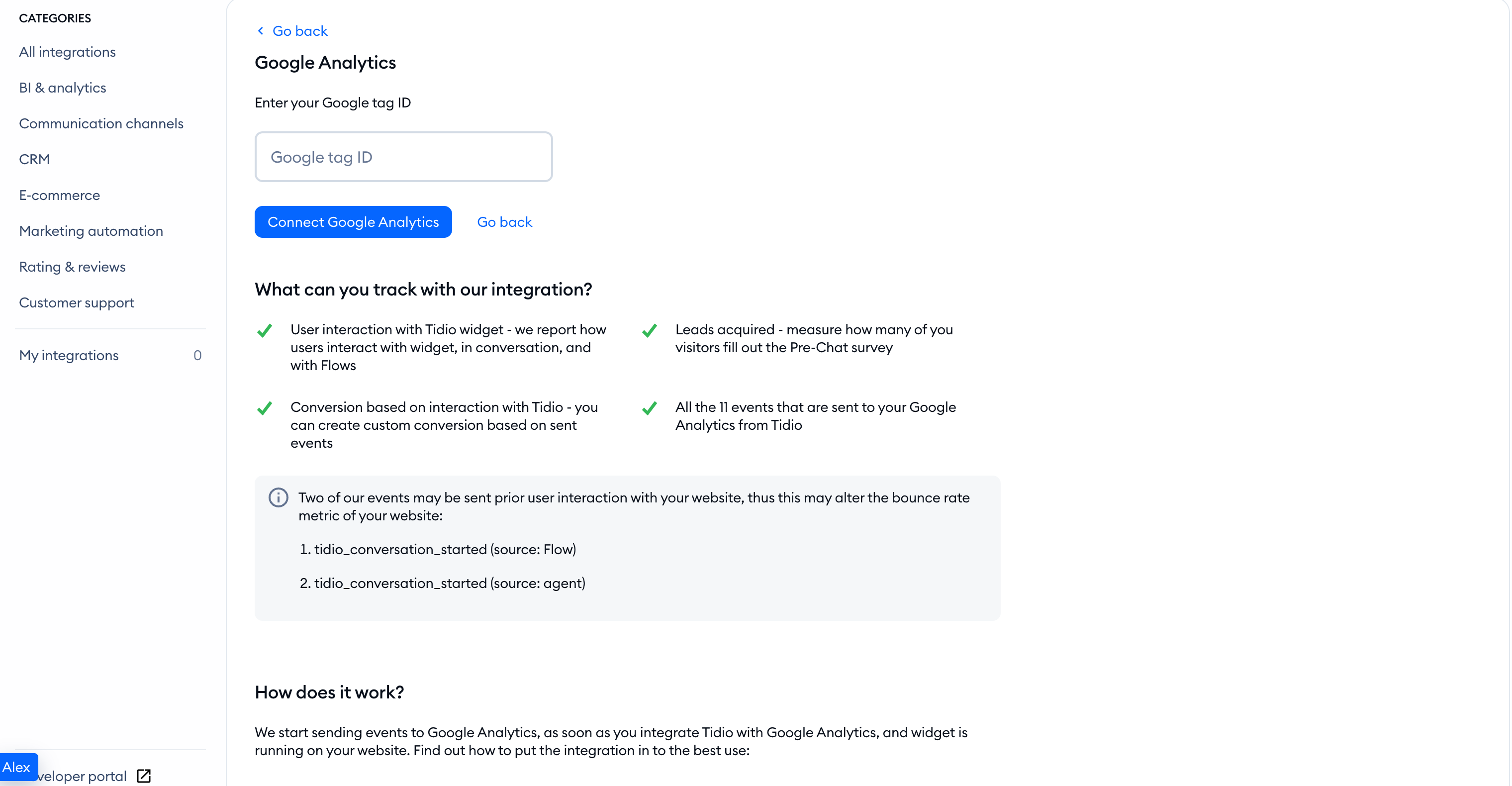
Head over to Integrations and open Google Analytics:
- Enter your Google tag ID to send events to a specific property. The ID is optional.
- Click Connect Google Analytics.
- If you leave the ID blank, the Google tag ID is missing warning appears. Click Connect anyway to continue, or Add Google tag ID to return to the field.
Without a tag ID, Tidio sends events to every Google Analytics property added to your website. If the integration is already active, change the ID and click Connect Google Analytics to save it. You don't need to uninstall an active GA4 integration just to update its tag ID.
What events can I track in Tidio?
You can learn about all available Tidio events you can track in GA4 by visiting our article about integrating Tidio with the new Google Analytics 4 (GA4).
