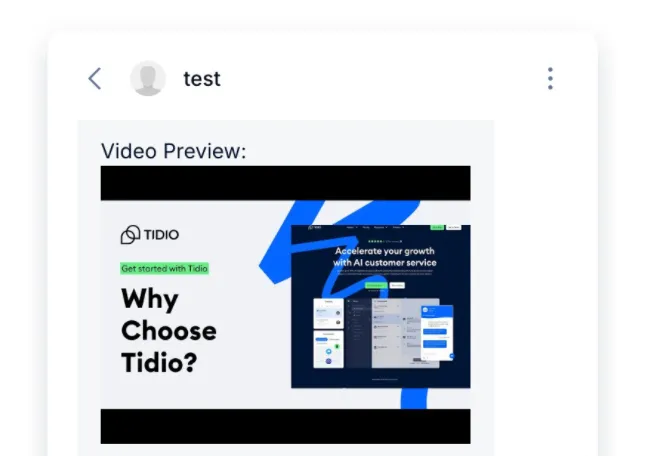
Tidio supports Markdown in select areas of the app, like Lyro Q&A answers and chatbot messages, so you can format your content with headers, lists, links, images, and more without writing any code.
In this article, you'll learn:
What is Markdown?
Markdown is a lightweight formatting language that turns plain text into styled content using simple symbols (e.g. ** can be used to make text appear bold). When the message is sent or rendered, your Markdown is converted into properly formatted output.
Below are Markdown examples for Lyro answers and flow messages. Support varies by channel, so check the result in the channel where your customers will read it.
Please note: These examples do not mean that every formatting option is available in the live conversation reply box. Rich-text controls in conversation replies depend on availability for your project and the channel. You can still use the link and image controls where they are shown.
Types of supported Markdown
There are several ways to use Markdown in Tidio, but it is not supported the same way in different places (for example, some Markdown is supported for Tidio's Instagram or Facebook integrations, but won't work the same way in the widget on your website).
Below you will find the different kinds of Markdown, and details about how it can be used in Tidio:
Text formatting
You can use bold or strikethrough formatting in your text, but keep in mind that only bold formatting will render properly inside the Tidio widget on your website (and requires slightly different Markdown for that).
Bold
For use inside the Tidio widget - wrap your text in double asterisks: **Bold**
For WhatsApp, use single asterisks: *Bold*. Facebook documents this syntax for chat on a computer, but client support differs. Do not rely on this syntax to make Instagram messages bold.
Strikethrough
Wrap your text in tildes: ~Strikethrough~
WhatsApp supports this syntax. Facebook documents it for chat on a computer; do not assume it will render in every Messenger client or in Instagram.
Hyperlinks
Hyperlinks work inside your Tidio widget and Lyro's question-and-answer editor. In the Q&A editor, you can use Insert link instead of typing Markdown. In conversation replies, use the link control where it is available for your channel.
While the links are also going to work on WhatsApp, Facebook Messenger, and Instagram - they may be shown in full, as opposed to your custom hyperlink text.
To create a hyperlink, wrap the link text in [ ], followed by the URL in ( ) - as shown below:
[click here](https://tidio.com)
Result: click here

Bulleted lists
Bulleted lists are supported for WhatsApp, Facebook Messenger, and Instagram. They will also render properly inside the question-and-answer pair editor (Lyro's datasources), as well as inside the flow editor.
For a simple bulleted list, use - followed by a single space:
- Item A
- Item B
- Item C
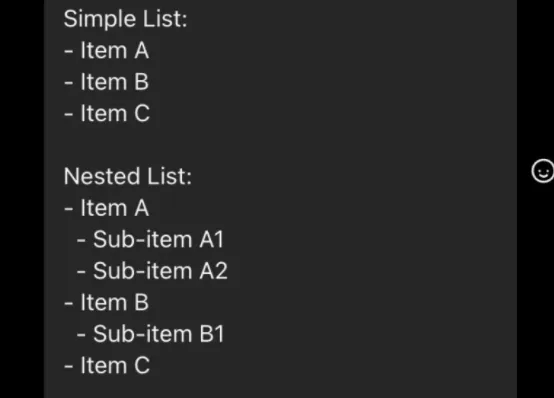
Result:
- Item A
- Item B
- Item C
For a nested bulleted list, additionally use two (2) spaces before each sub-item:
- Item A
  - Sub-item A1
  - Sub-item A2
- Item B
  - Sub-item B1
- Item C
Result:
- Item A
- Sub-item A1
- Sub-item A2
- Item B
- Sub-item B1
- Item C
Numbered lists
Same as bulleted lists, numbered lists are supported for WhatsApp, Facebook Messenger, and Instagram. They will also render properly inside the question-and-answer pair editor (Lyro's datasources), as well as inside the flow editor.
For a simple numbered list, use 1., 2., 3. followed by a single space:
1. Step One
2. Step Two
3. Step Three
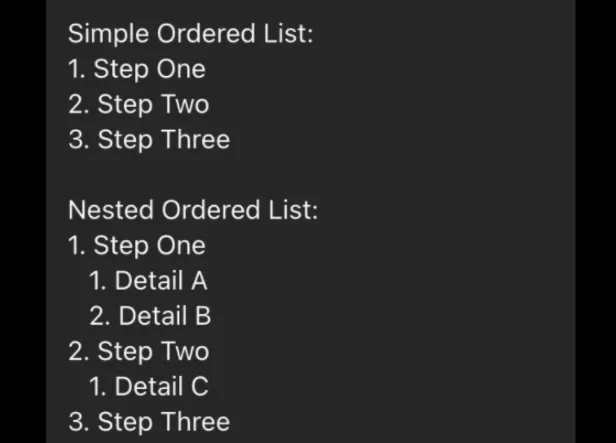
Result:
- Step One
- Step Two
- Step Three
For a nested numbered list, additionally use three (3) spaces before each sub-item:
1. Step One
   1. Detail A
   2. Detail B
2. Step Two
   1. Detail C
3. Step Three
Result:
- Step One
- Detail A
- Detail B
- Step Two
- Detail C
- Step Three
Images
You can insert images into your messages, and they will render inside your Tidio widget, as well as inside the question-and-answer pair editor (Lyro's datasources). Please note that there is no need to use Markdown for adding images in such places as conversations, tickets, or the Lyro question-and-answer pair editor - as the option to upload a file/image is available there.
When Markdown image syntax is converted for WhatsApp, Facebook Messenger, or Instagram, the result may be a link rather than an embedded image. This does not mean those channels cannot receive images uploaded as attachments.
Same as a creating a hyperlink, but starts with ! as shown below:

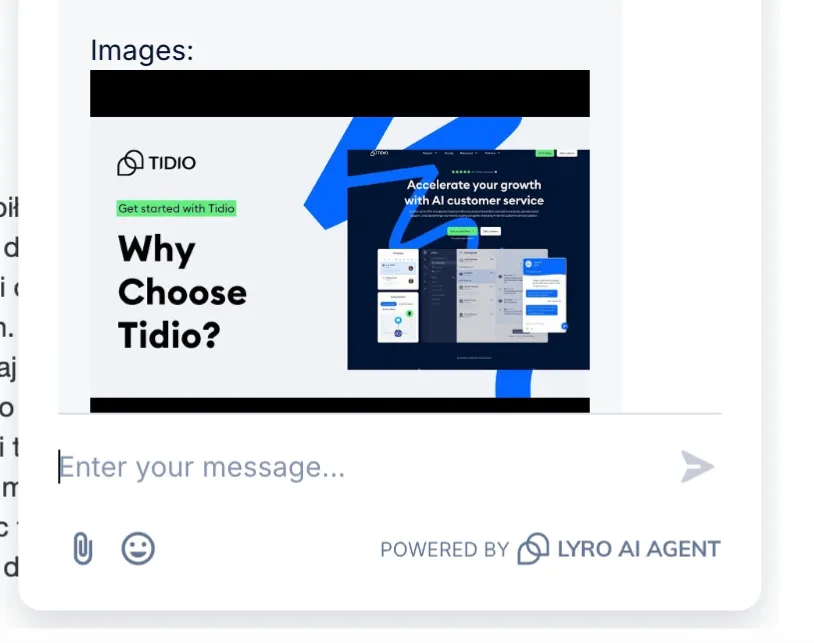
Result: the image is displayed directly inside the conversation.
Video thumbnails
Similarly to images, you can insert video thumbnails into your messages - and they will render inside your Tidio widget, as well as inside the question-and-answer pair editor (Lyro's datasources). In WhatsApp, Facebook Messenger, and Instagram, the image itself will not be rendered - instead, clickable links to both the thumbnail image and the target video will be shown.
To create a clickable video thumbnail, you need to combine two elements as shown below.
First, add an image and place it in [ ]:
[]
Next, directly follow that with a link to the target video, placed in ( ):
(https://www.youtube.com/watch?v=1FYOU5vd8ZU)
This should result in a single line of Markdown, as shown below:
[](https://www.youtube.com/watch?v=1FYOU5vd8ZU)
Result: the thumbnail is displayed directly inside the conversation, and clicking it opens the target video.