Integrating Tidio with MailerLite enables you to add subscribers to your MailerLite email marketing list.
In this article, you'll learn:
How to integrate Tidio with MailerLite
Open your Tidio admin panel and navigate to the Integrations section in the left sidebar. Then, click on the MailerLite tile.
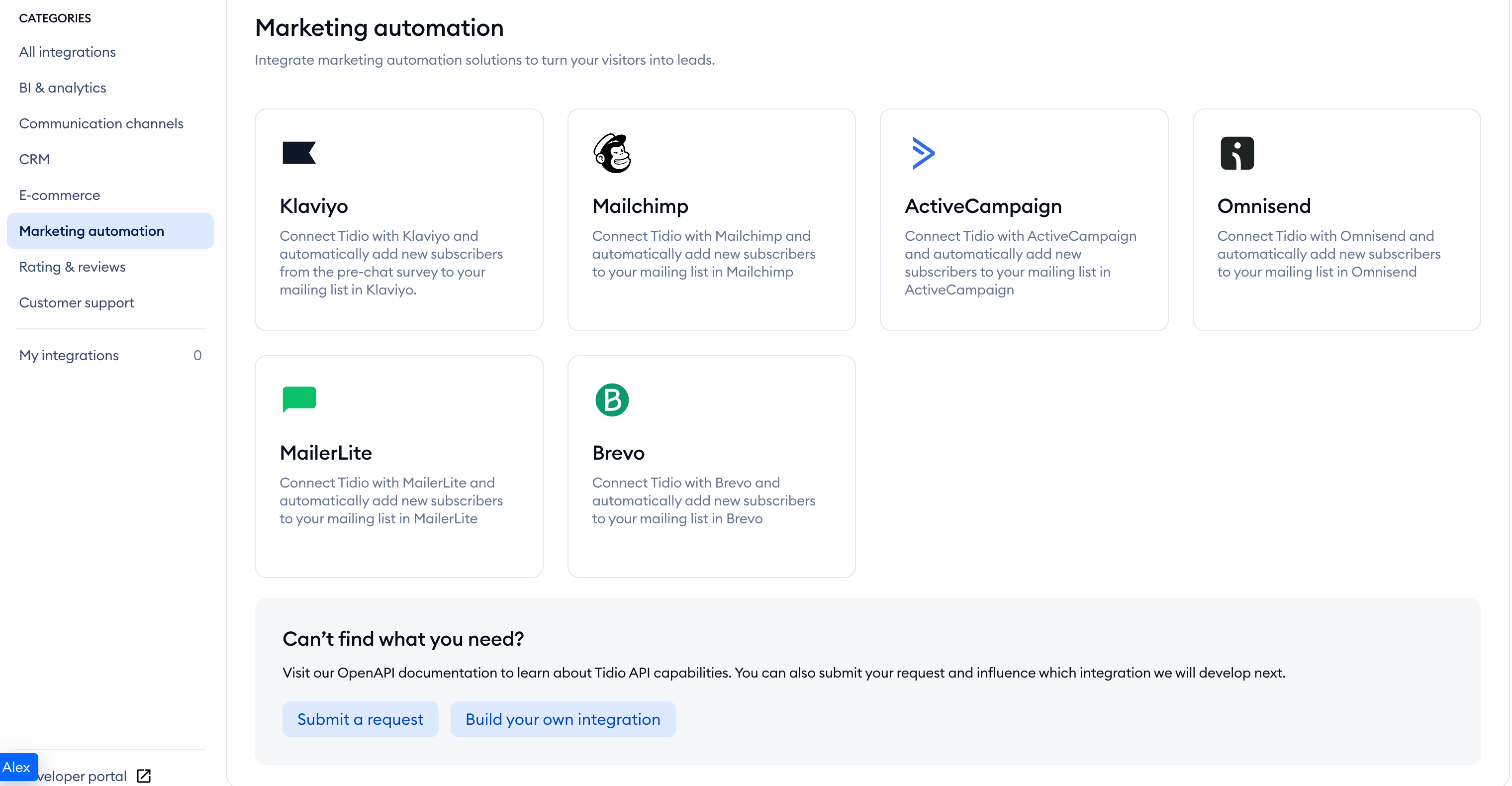
You'll see a window with a summary of all integration benefits. To proceed, click on the blue Install MailerLite button.
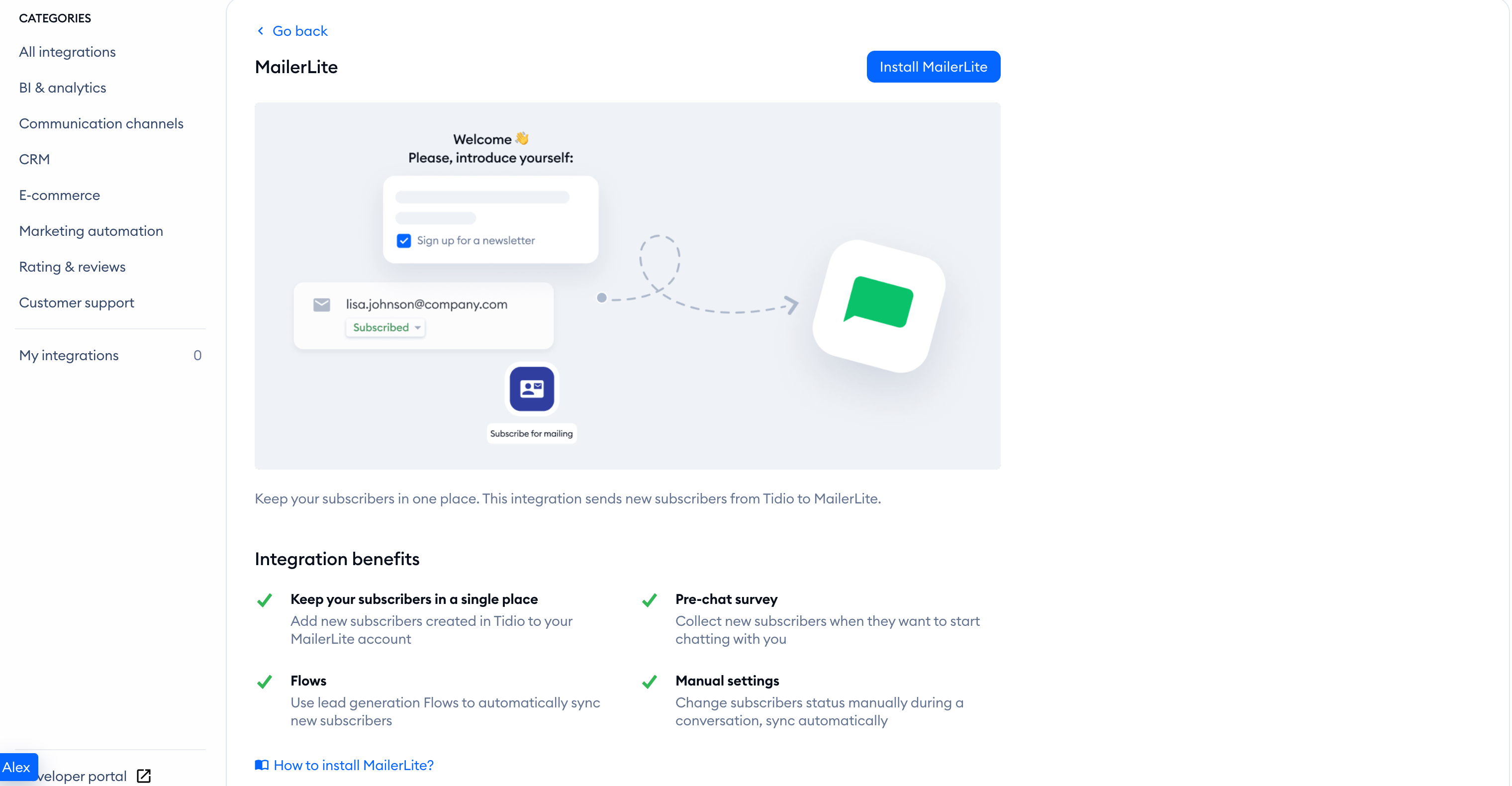
To create a new connection, select New Authentication.
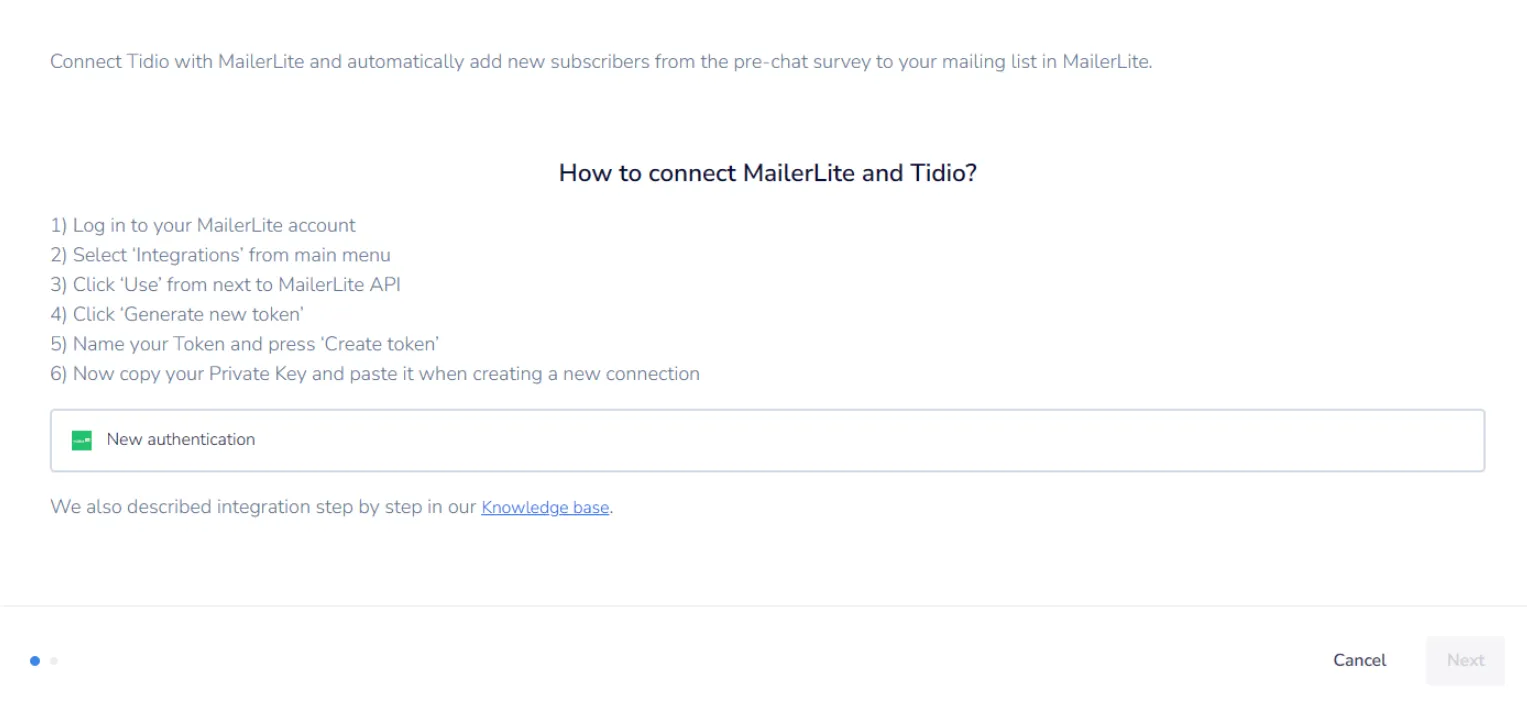
You'll need to authenticate the connection with the API Token Key from the MailerLite platform. To get it:
- Log in to your MailerLite account
- Select Integrations from the main menu
- Under MailerLite API, click Use next to API
- Click Generate new token
- Name your token, choose its IP restrictions, and click Create token
- Now copy your Private Key and paste it when creating a new connection
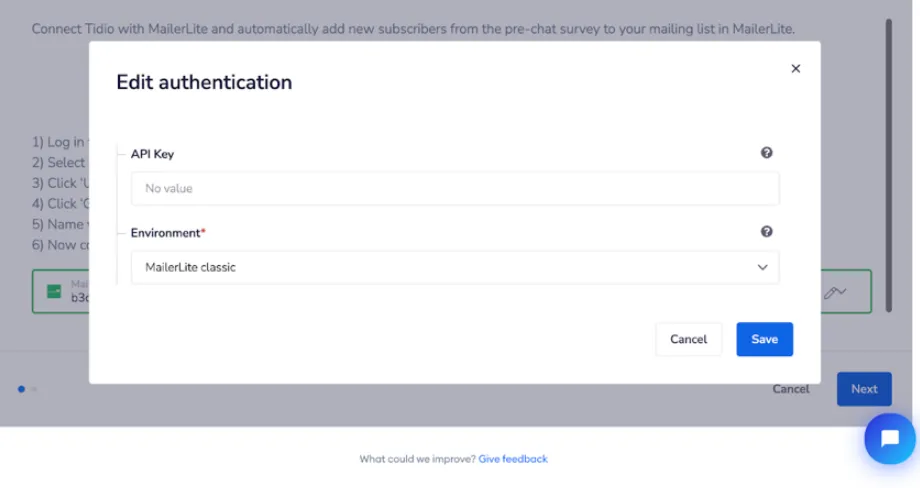
Next, paste your API Token into the API Key field, and select the Environment to which new subscribers will be added. Click Save and your authentication with MailerLite is done.
Next, you need to select the group to which you want to add new subscribers from Tidio. When you do that, click Finish.
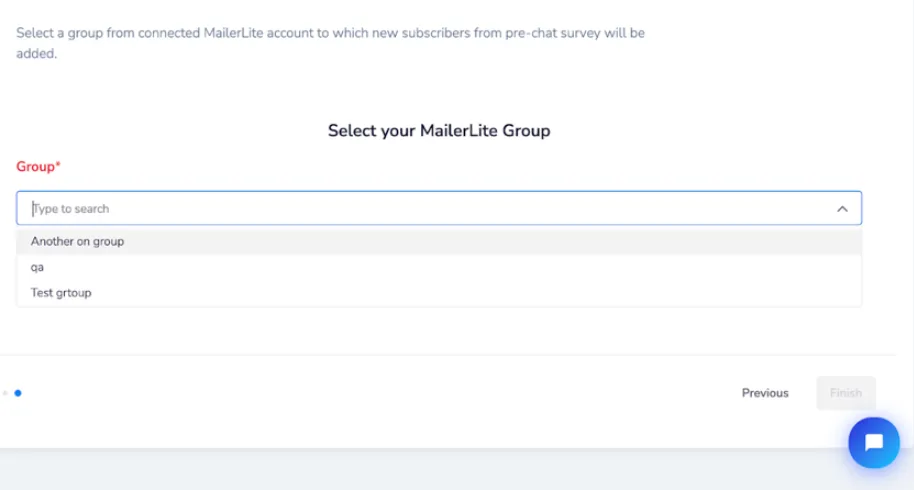
You are all set. Your integration with MailerLite is ready. Now you can add new subscribers from Tidio to MailerLite.
How to add new subscribers from Tidio to MailerLite
New subscribers are added to MailerLite from Tidio in a few scenarios:
Please note: While MailerLite is connected, Ask your visitor for newsletter permission stays enabled in your pre-chat survey settings. You cannot turn this checkbox off while the integration needs it.
Pre-Chat Survey
When you have the Pre-Chat Survey enabled, and a user provides their email address and communication consent, this email will be automatically added to your MailerLite list.

Manual status update
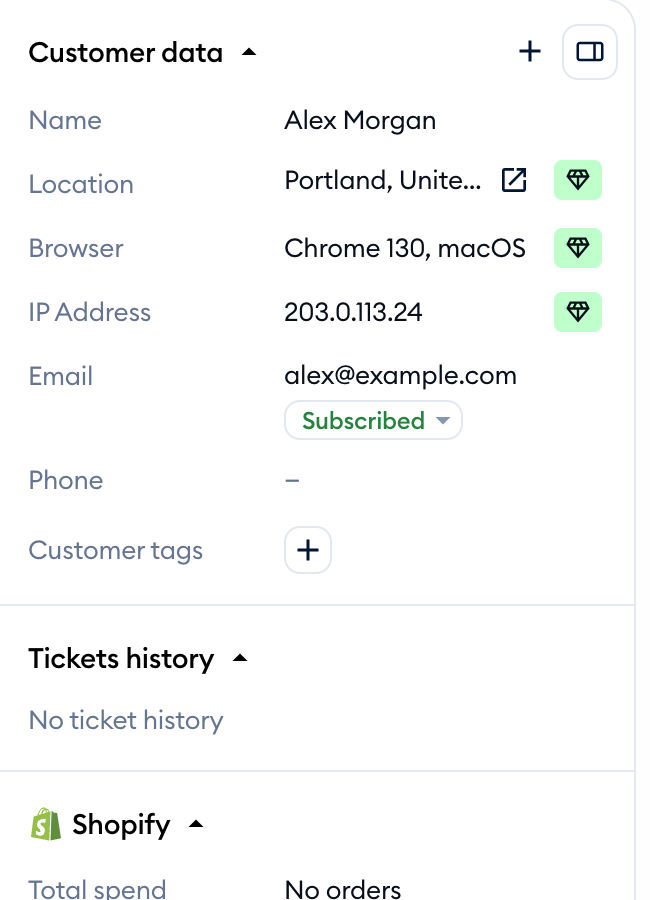
You can change a user's subscriber status manually. When you change it to 'Subscribed,' we will pass the user's email to MailerLite.
Flow
You can add subscribers to MailerLite using a flow and the 'Subscribe for Mailing' node. When you collect an email address using such a flow, we pass it automatically to your MailerLite list.