Tidio's integration with Google Tag Manager allows you to send events from the Tidio widget to dataLayer, and then from dataLayer through GTM to other services.
In this article, you'll learn:
- How to integrate Tidio with Google Tag Manager
- How to set up the Tidio widget event listener
- How to create variables from Tidio events parameters
- What Tidio widget events are sent to Google Tag Manager
How to integrate Tidio with Google Tag Manager
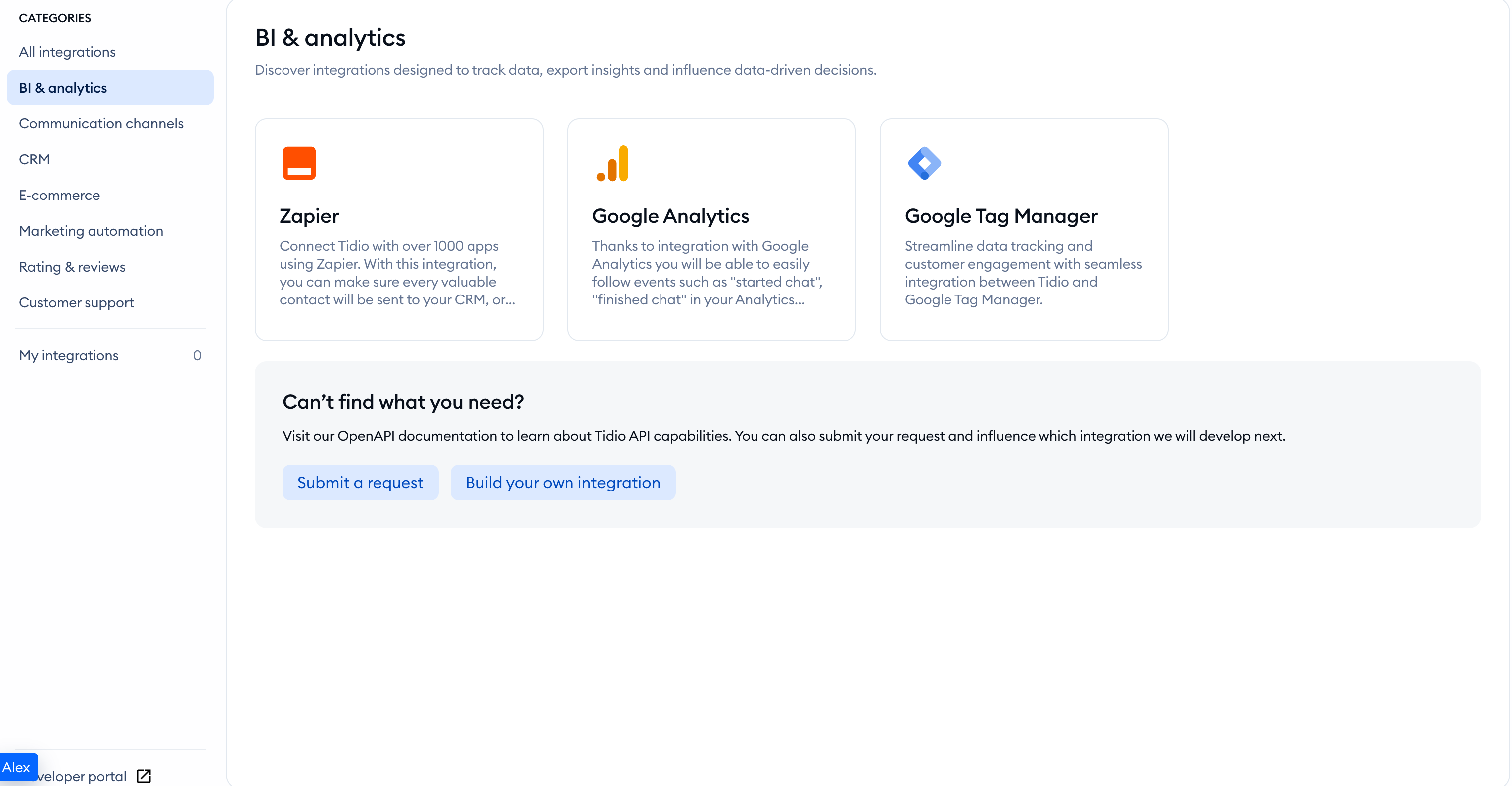
To enable integration with GTM, go to the list of integrations in your Tidio admin panel and click on the Google Tag Manager tile.
Next, press Connect Google Tag Manager.
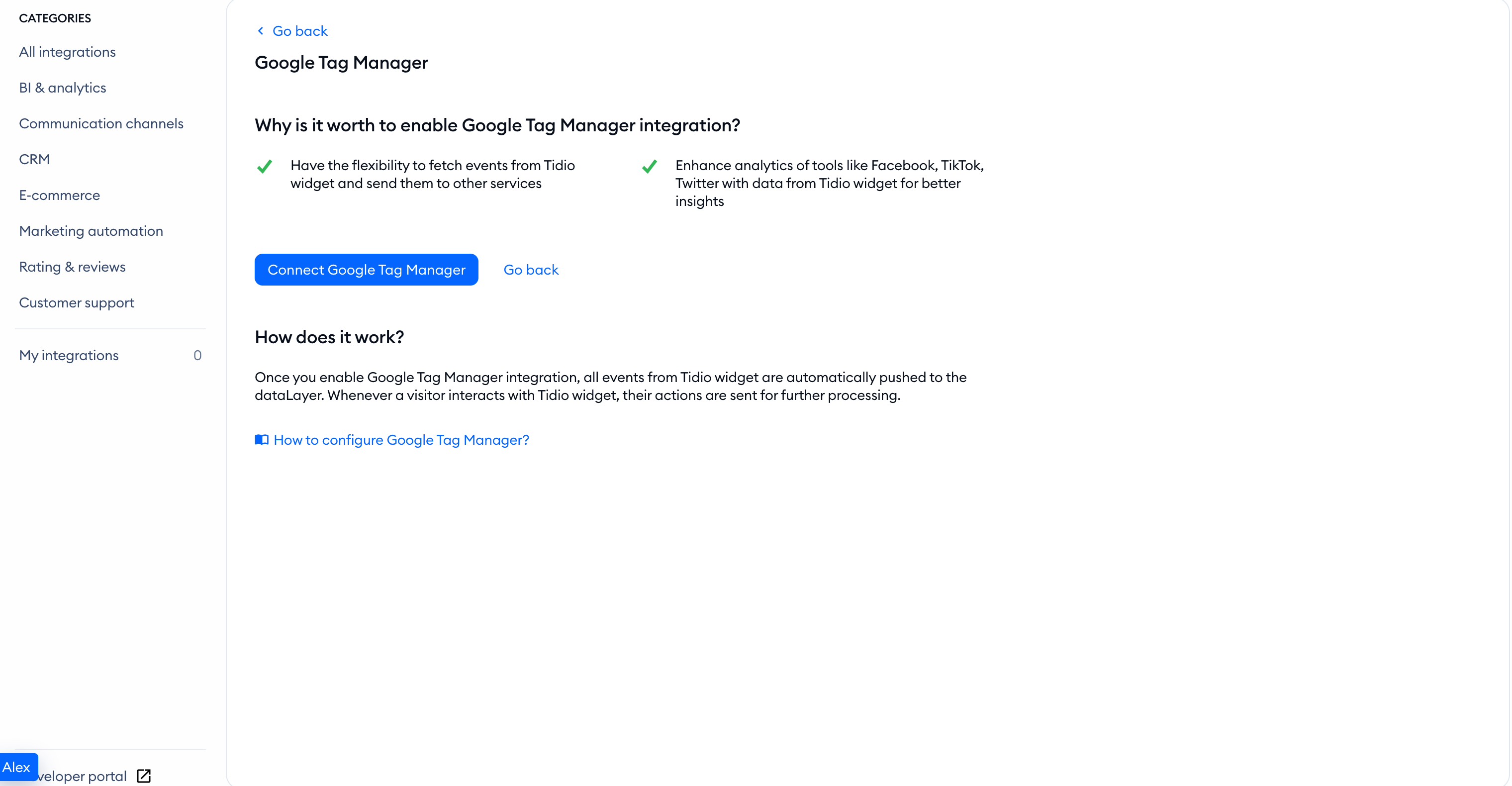
From now on, events from the Tidio widget will be sent to your dataLayer. Now you'll need to set up GTM in order to see Tidio widget events in the GTM.
Setting up Tidio widget event listener
Tidio events use a specific naming convention. Events names follow the structure:
tidio_{{event_category}}_{{event_action}}, where:
tidio_ - is a prefix that indicates the origin of the event. It will also be a prefix for custom events sent from flows.
{{event_category}} - indicates a category. we have identified three categories:
- widget - groups actions that users can perform in a widget
- prechat - refers to actions done with regard to the pre-chat survey
- conversation - refers to actions done with regard to a conversation. These events can also be triggered by an agent or a flow, not necessarily a visitor.
{{event_action}} - refers to users/visitors, agents, automation action, e.g., started so there will be an event with the name `tidio_prechat_started`. Below is a cheatsheet with all events, parameters, and dataLayer.push calls of Tidio widget events.
To catch all those events in Google Tag Manager, you'll need to set up a Trigger.
To set up a trigger:
1. log in to your Google Tag Manager account and go to the Triggers section.
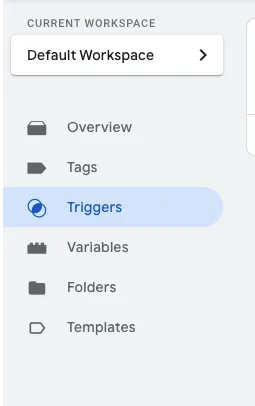
2. Press New
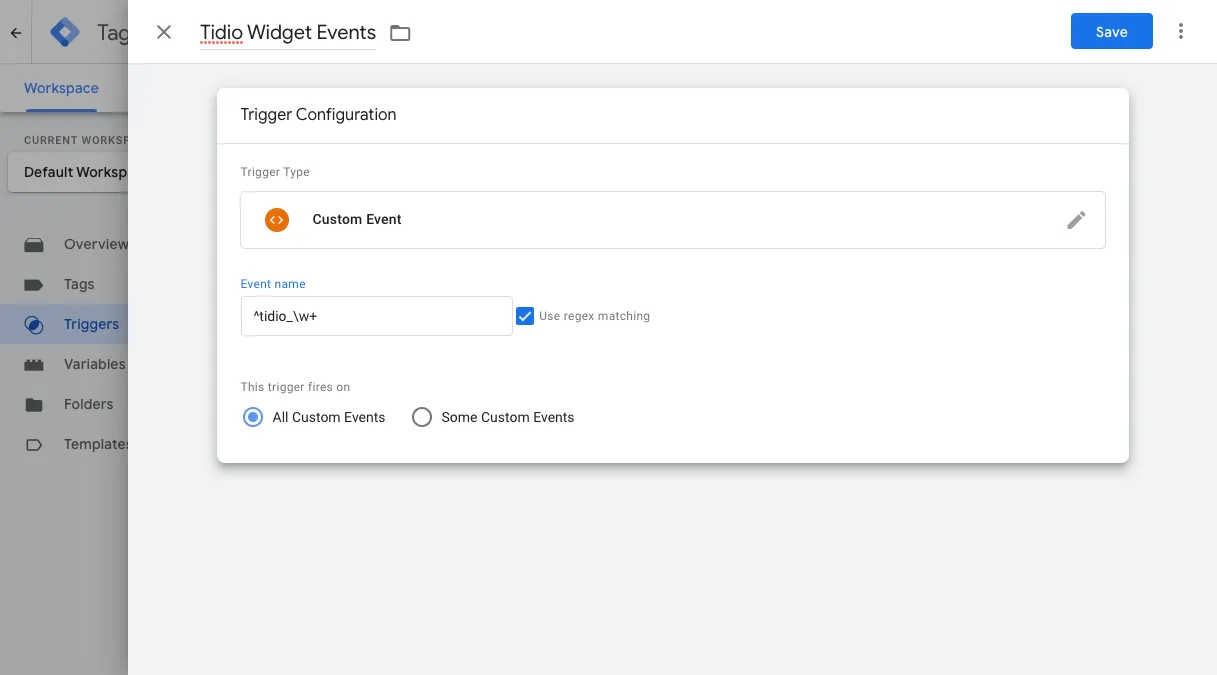
3. As a name, you can set Tidio Widget Events
4. In the trigger type, select Custom Event
5. In the event name, paste ^tidio_\w+ and select Use regex matching. This will allow you to trigger all events that begin with tidio_ , so you don't have to set up a trigger for every single event.
6. Press Save
To forward these events to GA4, first set up your Google tag in GTM. Create a Google Analytics: GA4 Event tag, enter your GA4 Measurement ID, and use the built-in Event variable for Event Name. Attach the Tidio custom event trigger under Triggering. Add the event parameters you need using the data layer variables described below.
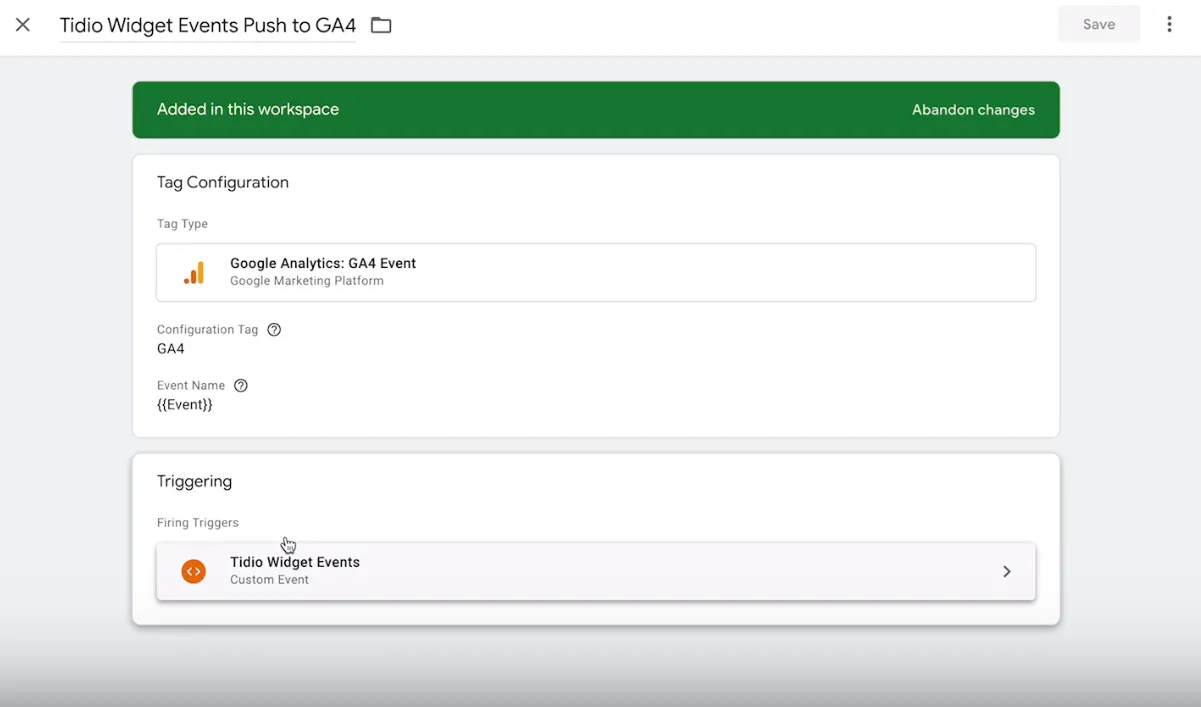
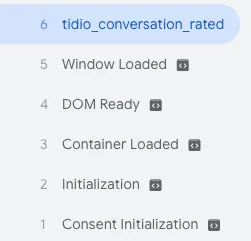
Use Preview to test the tag on your website. After checking that it fires for Tidio events, click Submit, select Publish and Create Version, and click Publish. Saving a tag alone does not make it active on your website.
Creating variables from Tidio events parameters
We send not only events but also parameters inside them. You can pick them up with GTM and save them as variables that can be used in Tags or Triggers.
To create a Variable:
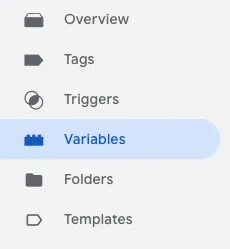
1. Log in to Google Tag Manager
2. Go to Variables
3. Press New in User-Defined Variables
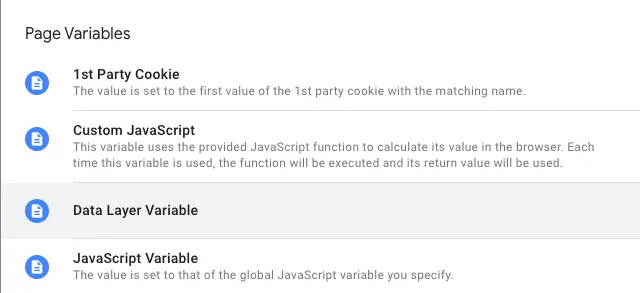
4. Select Data Layer Variable for variable type
5. Paste the name of the variable from the list of Tidio Widget Events variables.
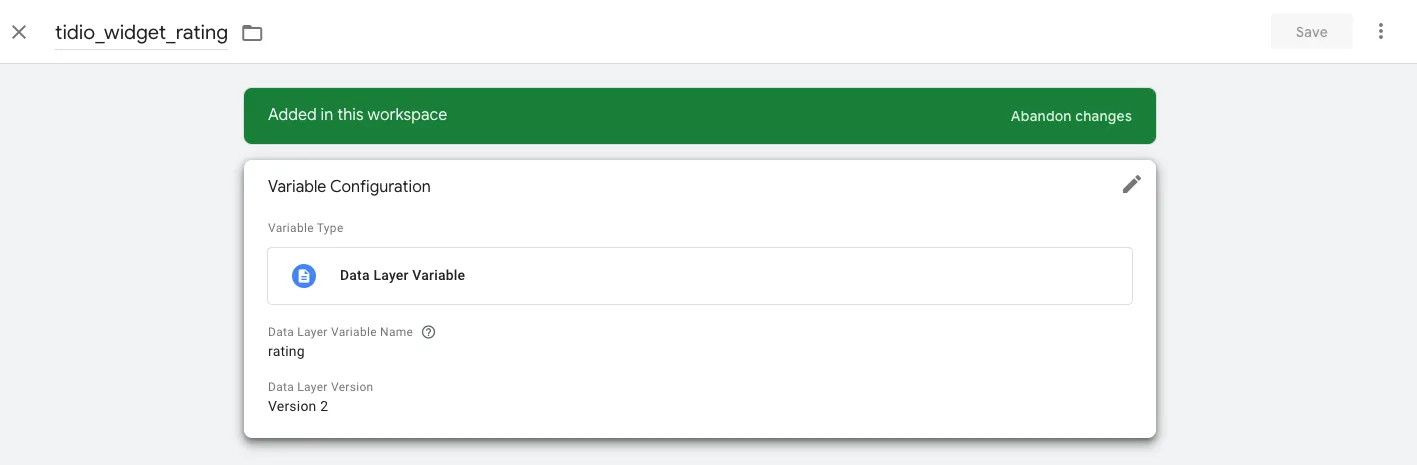
6. Name your variable and click Save. Repeat for each parameter you want to use.
Now, you can use both Tidio events and parameters as triggers and variables for tags from GTM.
Tidio Widget Events sent to Google Tag Manager
We use dataLayer.push method to send events from the Tidio widget to GTM. Below you'll find information on what events, what parameters, and when they are sent.
Tidio Widget GA4 Events
| Name | Event theme | GA4 Event parameters | Description | GTM example API call |
|
tidio_widget_mute_notifications |
Widget | visitor_id | A visitor mutes notifications. |
dataLayer.push({ event: "tidio_widget_mute_notifications", visitor_id: "a0488de5553843668d061d961468f224" }) |
| tidio_widget_open | Widget | visitor_id | A visitor opens Tidio widget. | dataLayer.push({ event: "tidio_widget_open", visitor_id: "a0488de5553843668d061d961468f224" }) |
| tidio_widget_close | Widget | visitor_id | A visitor closes Tidio widget. | dataLayer.push({ event: "tidio_widget_close", visitor_id: "a0488de5553843668d061d961468f224"}) |
|
tidio_widget_visitor_started_bot |
Widget | visitor_id | A visitor started a flow intentionally. | dataLayer.push({ event: "tidio_widget_visitor_started_bot", visitor_id: "b42c892b2804493d882b550511806aee" }) |
|
tidio_prechat_started |
Pre-Chat | email, phone, name, visitor_id, consent_given | Pre-chat survey is displayed to a visitor. | dataLayer.push({ event: "tidio_prechat_started", email: true, phone: true, name: true, consent_given: true, "gtm.uniqueEventId": 10 }) |
|
tidio_prechat_finished |
Pre-Chat | email, phone, name, consent_given | A visitor has submitted pre-chat survey. | dataLayer.push({ event: "tidio_prechat_finished", email: true, phone: true, name: true, consent_given: true, "gtm.uniqueEventId": 9 }) |
|
tidio_conversation_{{custom_event}} |
Conversation | A custom event sent by a flow through Send an event to Google Analytics. | dataLayer.push({event: "tidio_conversation_custom_event" }) | |
|
tidio_conversation_started |
Conversation |
source, operator_status, chatbot_name, message_type, visitor_id |
The first message in the thread is sent by the visitor, agent, or flow. | dataLayer.push({ event: "tidio_conversation_started", visitor_id: "a0488de5553843668d061d961468f224", source: "chatbot", chatbot_name: "Welcome new visitors", message_type: "text", operator_status: "online" }) |
|
tidio_conversation_rated |
Conversation | rating, visitor_id, thread_id | A visitor has rated a conversation using emojis. | dataLayer.push({ event: "tidio_conversation_rated", thread_id: 15550, visitor_id: "a0488de5553843668d061d961468f224", rating: 5 }) |
Further reading
Set up Google Analytics events in Tag Manager in the vendor help center.
