You can mark important Tidio events as key events in Google Analytics. GA4 previously called these conversions. Google Ads conversions are separate and can be created from GA4 key events for advertising measurement.
In this article, you'll learn:
- What are key events and Tidio events
- How to set Tidio events as key events in Google Analytics
- How to filter valuable events to select them as key events
- How to create a new key event event based on an existing event
- Frequently asked questions
Introduction to key events
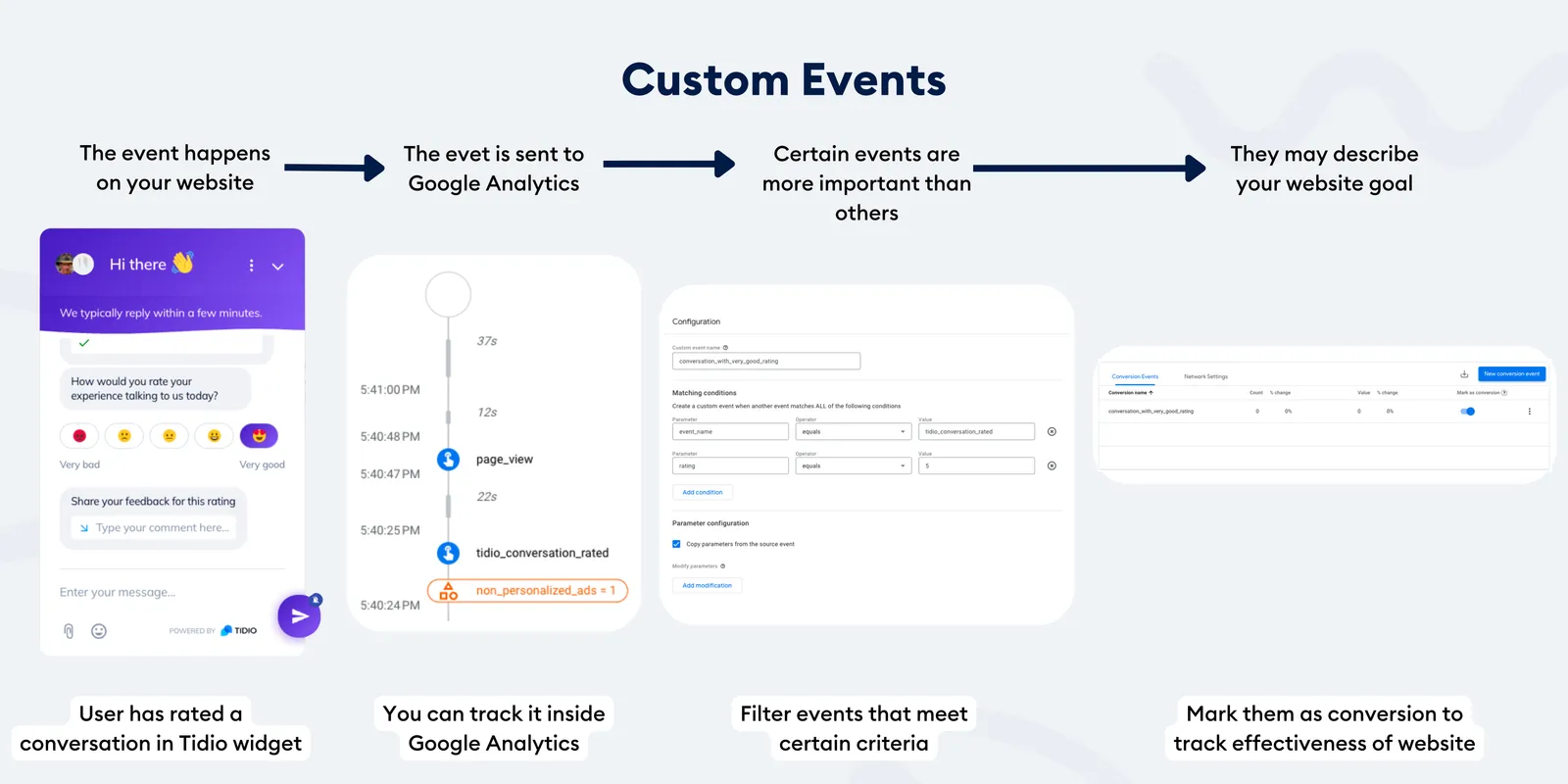
Before we jump into key events, let's understand what we mean by Tidio events. Tidio can collect various types of data about user interactions on your website, such as flow conversations or live chat interactions. These interactions are referred to as Tidio events. We can choose specific Tidio events and mark them as key events in Google Analytics. You can learn more about all available events in our article about integrating Tidio with Google Analytics 4.
An example we often see in Tidio is when Tidio is used to collect leads through a flow or live chat. Our integration with GA4 supports many different events, so we can easily specify which we consider a key event.
Marking the event as a key event
The Google Analytics screenshots below show an older interface. Follow the current key event steps in the text.
The easiest way to set a Tidio event as a key event is to mark it as a key event in the Google Analytics admin panel. This approach is useful when you use Send an event to Google Analytics in flows and give your custom events distinctive names. The Mark as key event method works on an event name level.
Use an account with permission to manage key events. To mark an existing event:
- Log in to Google Analytics
- Go to Admin
- Select desired GA4 property
- From options under this property, select Events
- In Recent events, find the event and click the star next to it to mark it as a key event.
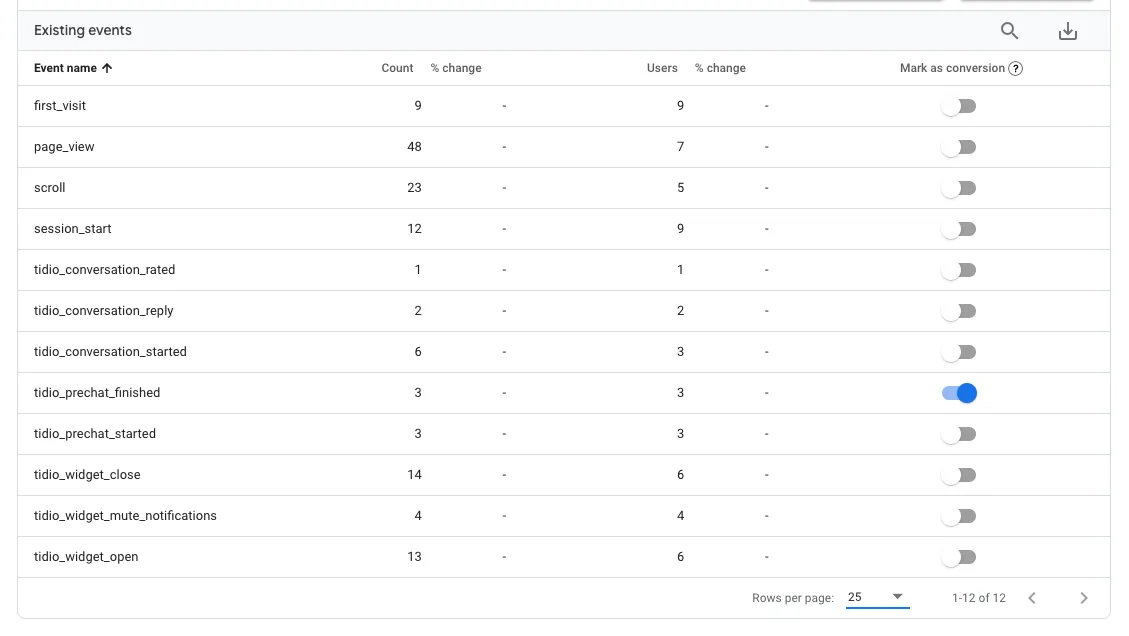
This approach works at the event name level. However, what if you have multiple events with the same name but want to mark only specific events with certain parameters or values as key events?
Filtering valuable events
Imagine you want to track all the new newsletter subscriptions collected through Tidio's pre-chat survey. You already know that whenever someone finishes the pre-chat survey, an event tidio_prechat_finished is sent to your Google Analytics
However, this event is sent regardless of their newsletter opt-in. Whether someone has subscribed for a newsletter is specified in a parameter called consent_given, sent within the tidio_prechat_finished event.
Parameter consent_given can have two values - true or false. If true, it means the user opted in for a newsletter.
In other words - an event tidio_prechat_finished with parameter consent_given = true indicates a key event - growth of your newsletter subscribers list.
So you want to mark only this specific event as key event.
Creating a new key event event based on an existing event
To achieve it, you can create a new event based on the existing one. To do that:
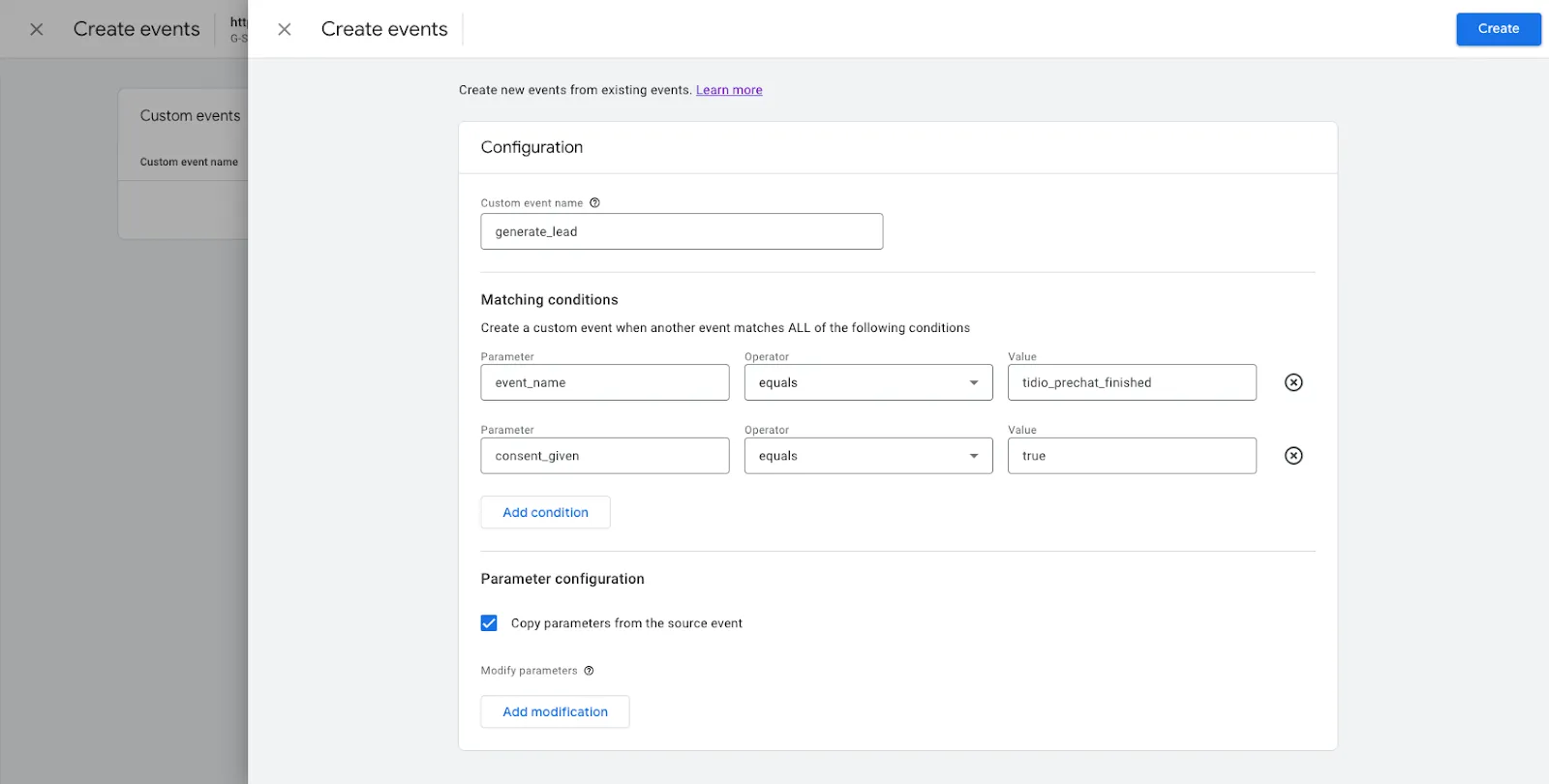
- Open Admin > Data display > Events. Under Custom configurations, click Custom events and choose your data stream. Click Create.
- Name the new event
generate_lead, or choose another distinct event name. - Then specify matching conditions
- These conditions will be checked whenever an event is reported to GA. If all of them are met, a new custom event will be created.
- Based on the example of subscribers from the pre-chat survey, specify the following:
-
Parameter
event_nameequals tidio_prechat_finished → Only events tidio_prechat_finished indicate that the user has passed the survey in the Tidio widget. - As the next parameter set, consent_given equals true → Only when someone opts in for a newsletter it's equal to true.
-
Parameter
- Check Copy parameters from the source event to propagate other parameters that are sent with tidio_prechat_finished event.
- Click Save
After Analytics collects the new event, find it in Recent events and click its star to mark it as a key event. This affects future reports, not historical data.
Please note that with this approach, the same action will result in two events being created in Google Analytics:
- Original tidio_prechat_finished
- A new one, created based on the first generate_lead
Frequently Asked Questions
I do not see Tidio events in the Admin section of Google Analytics
To troubleshoot, please:
-
Check if the Tidio widget is displayed on your website.
-
Check if you have enabled Google Analytics integration in Tidio
-
Google Analytics data processing typically takes 24-48 hours, and reports can change during that time. Use Reports > Realtime to check recent events, or enable debug mode and use DebugView for troubleshooting.
What events and parameters are sent from Tidio to Google Analytics?
You can find a complete list of events and parameters in our article about integrating Tidio with Google Analytics 4.
Do parameters used to create a new key event have to be defined as custom properties or metrics?
No. You can define parameters passed to Google Analytics along with the event.
