Analytics API lets you use the statistics from your Tidio project in external systems - like an AI assistant, spreadsheet, or BI (Business Intelligence) tool. No more screenshots or manual exports necessary.
In this article, you'll learn:
- What Analytics API is
- The difference between Analytics API and OpenAPI
- How to use Analytics API
- A practical example of Analytics API (via MCP)
What is Analytics API?
Available to subscribers of the Plus and Premium packages, Analytics API gives you direct, read-only access to your project's historical data as simple tables. This data includes:
- Live conversations and tickets;
- Agent and visitor details;
- CSAT ratings;
- Lyro threads, intents, and suggestions;
- Usage stats.
You can use all the available data for advanced reporting in BI tools, data warehouses, or spreadsheets.
Standard REST API
The base URL: https://taa.data.tidio.com
Read-only
It cannot send messages or change settings.
Credentials
Uses the same Client ID and Client secret as OpenAPI - there is nothing extra to switch on.
Permissions
Only Project Owners (and admins) can generate keys via Settings > Developer > Tidio APIs.
Please use the documentation below for reference:
How is it different from OpenAPI?
Analytics API and OpenAPI share the same credentials, but they're used for different jobs. They also use different base URLs.
Analytics API: gain insights
- Access: read-only
- Data: historical and aggregated
- Purpose: reports, dashboards, exports to BI, warehouse, or spreadsheet
- Intended for: data, BI, and reporting teams, or agencies
-
Base URL:
https://taa.data.tidio.com
OpenAPI: take action
- Access: read and write
- Data: live, real-time records
- Purpose: CRM sync, ticket management, store and payment integrations
- Intended for: developers connecting other systems to Tidio
-
Base URL:
https://api.tidio.com
Using Analytics API
There are different methods of using Analytics API; choose the one that matches your skills and needs. The API does not join tables itself - you link them in your tool via shared IDs.
-
Ask an AI assistant, connected via MCP - no code
Best for quick answers. Ask in plain language in Claude, ChatGPT, or Cursor. See an example below.
-
Spreadsheets - no code / low code
Best for simple, regular reporting. Excel can pull a table directly, while Google Sheets can do it with a short script.
-
BI tool - some BI familiarity
Best for ongoing dashboards. Load tables into Power BI, Looker, or Tableau and link them.
-
Direct API requests - basic API knowledge
Best for exploring one table at a time in Postman or a script. Might not be suitable for large-scale reporting, however.
-
Data warehouse sync - for developers
Best for large accounts. Copy tables into BigQuery, Snowflake, or similar on a daily basis, and combine with other business data.
An example: ask about your data via MCP
Connecting through an MCP lets systems like Claude, Cursor, or ChatGPT query historical data from Tidio. Data loads daily; the previous day is normally available around 10:00 UTC. You just ask questions, and the assistant picks the right tables and shares the data with you on request. You will get answers, tables, and CSVs directly in chat.
Please see this guide on connecting Analytics API via MCP.
In my configuration example below, I will be connecting my Tidio project's Analytics API with Claude Desktop.
Step 1: Getting API credentials
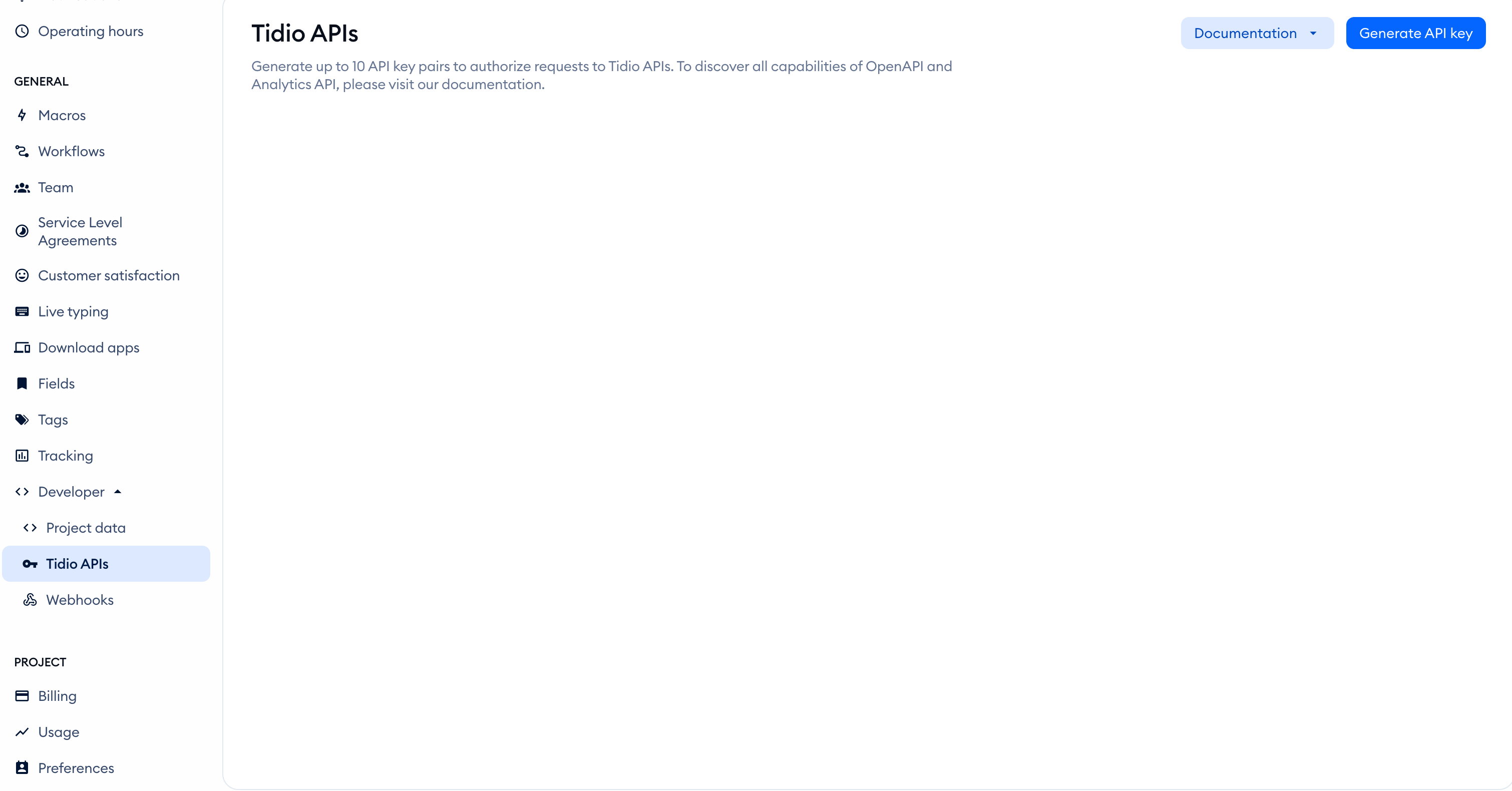
In my Tidio project, I go to Settings > Developer > Tidio APIs:
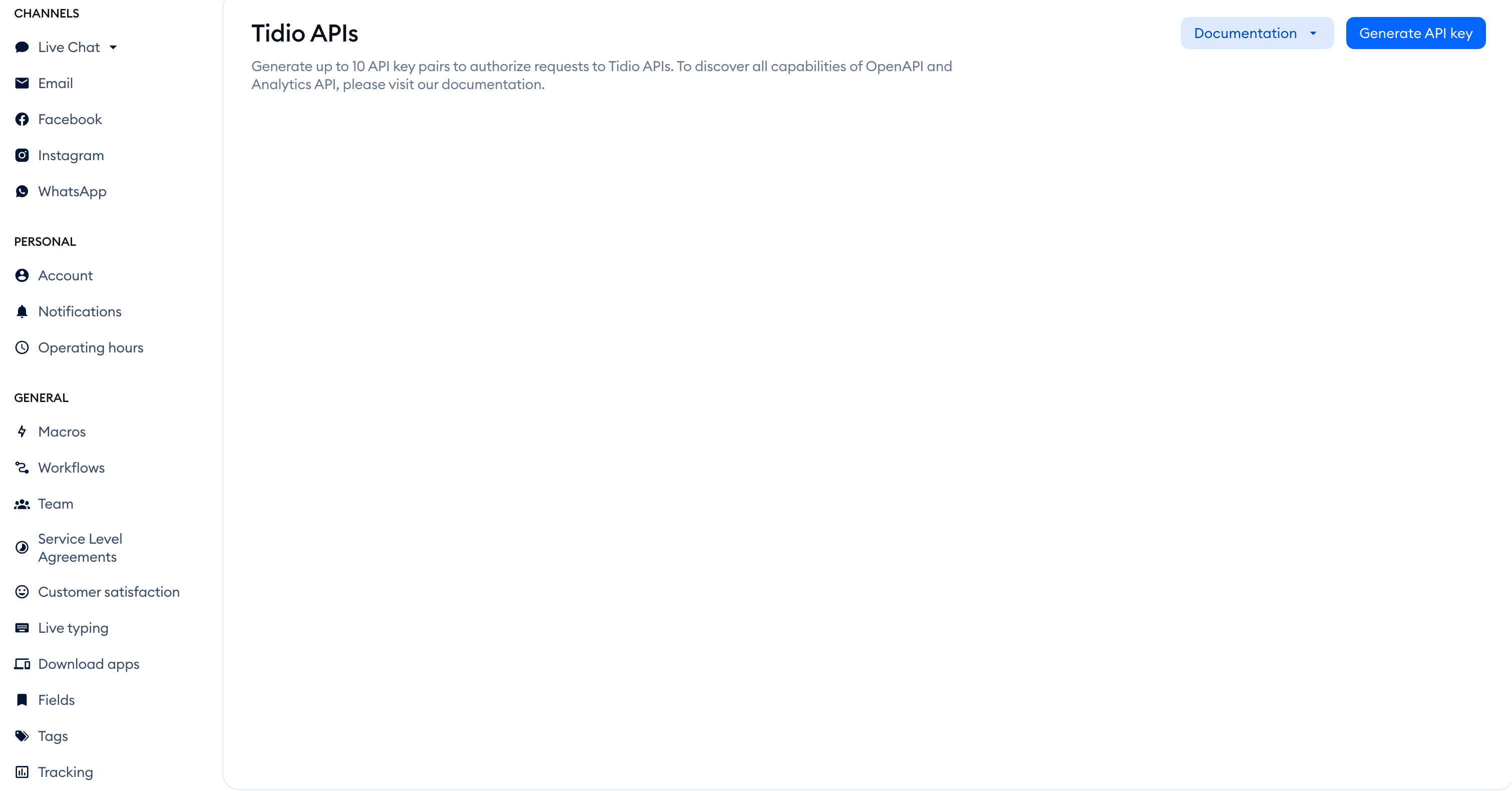
Inside, I click on the Generate API key button in the top-right:
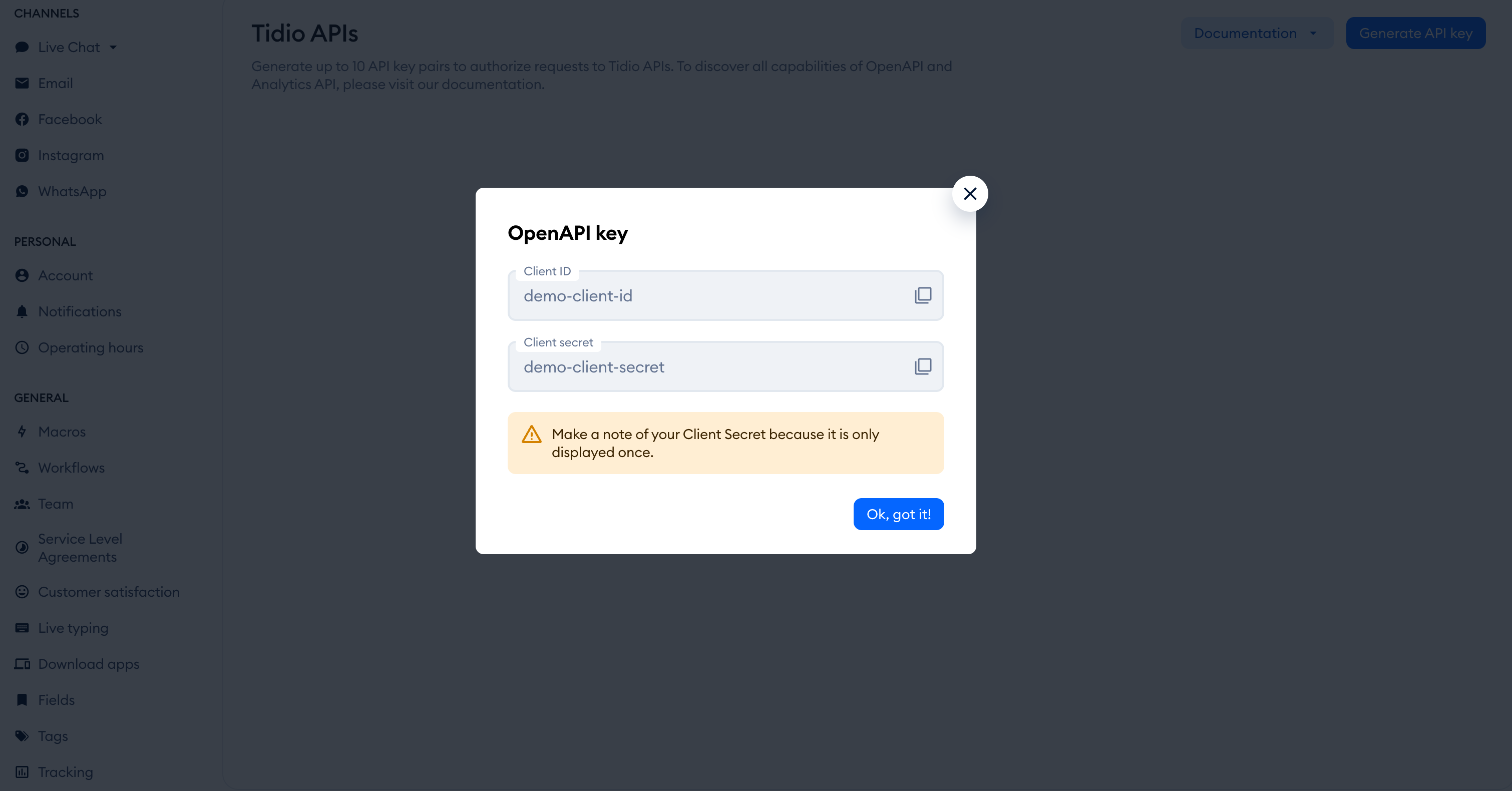
This creates a brand new pair of credentials associated with my Tidio project - a client ID and secret (this must be saved somewhere securely, as it is only shown once):
Step 2: Install Node.js
This connection uses the local mcp-remote bridge and requires Node.js. If Node.js is not installed, download it from nodejs.org.
Step 3: Access the Claude Desktop configuration file
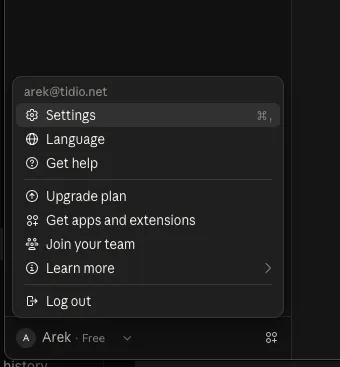
I launch Claude Desktop and go to Settings through the menu in the bottom-left:
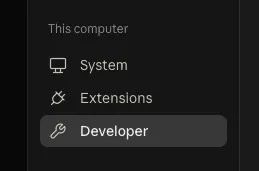
I open the Developer section there:
Inside, I click on the Edit config button:
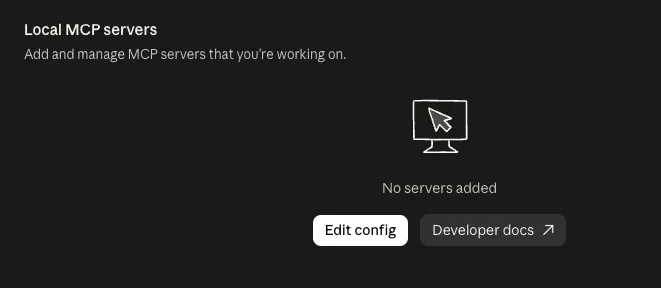
This takes me to Claude's local configuration file on my computer. I open this file in a text editor, which allows me to modify it.
Step 4: Modify the Claude configuration file
Now, it's time to copy the relevant code (taken from the developer documentation here) and paste it into the configuration file. Keep the configuration as one valid JSON object. If it already has an mcpServers object, add the tidio-analytics entry inside it without replacing other servers:
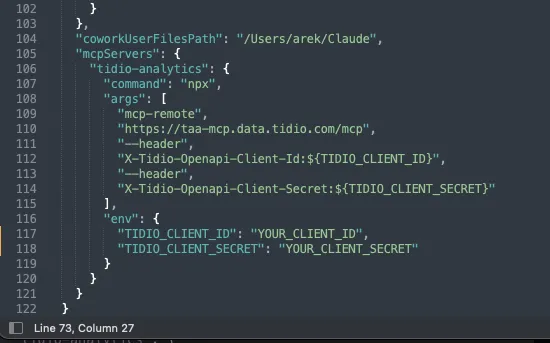
I then replace the two placeholders of the new code ('YOUR_CLIENT_ID' and 'YOUR_CLIENT_SECRET') with my actual API key credentials, created earlier inside Tidio.
After saving this new version of the Claude configuration file, I quit Claude Desktop and re-launch it. The new configuration, allowing Claude to connect with my Tidio project's Analytics API, is ready to work now.
Step 5: Start using Analytics API in Claude Desktop
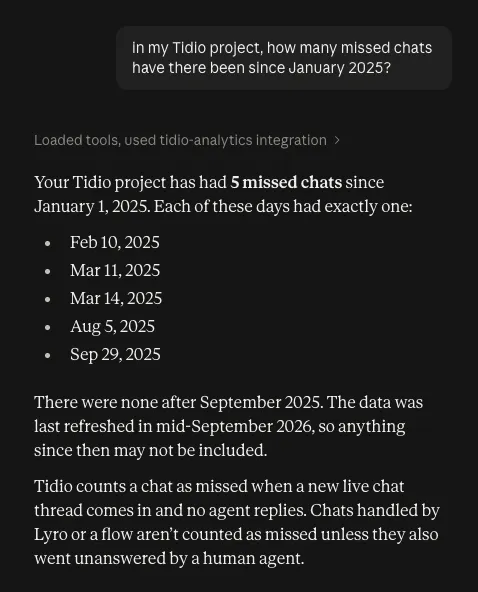
Now that the required configuration is done, I am free to ask Claude any Analytics questions. Claude will be able to pull the relevant information via MCP, and provide it as requested:
Managing API keys
Your project can have up to 10 API key pairs. At that limit, Generate API key is disabled. Use the trash icon beside an unused key to delete it before generating another. Save the Client secret securely when it appears; it is shown only once.
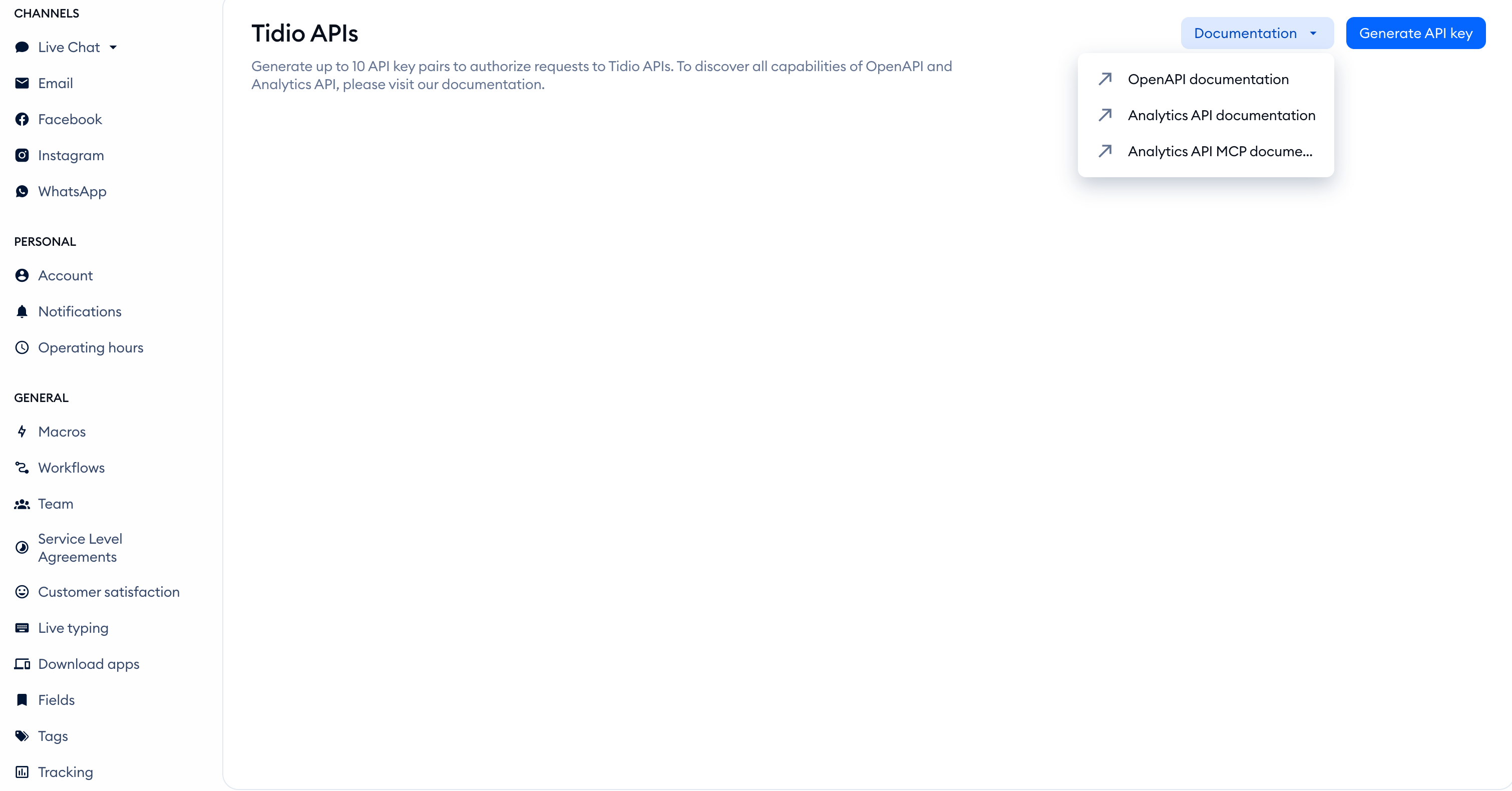
The Documentation menu links to OpenAPI documentation, Analytics API documentation, and Analytics API MCP documentation.
Please note: If your project has neither full API access nor access to product recommendations, Generate API key opens an upgrade window. Product-recommendation access alone lets you generate keys for product endpoints, not full Analytics API access.
Further reading
See Developer resources in Tidio or Product Recommendations via OpenAPI.
