# Install Tidio on Webflow
Section: Install Tidio
Description: Add Tidio to your Webflow site's footer code, publish your changes, and check the chat widget on your live site.
Verified against Tidio panel 12.331.0
Last updated: 2026-11-18
Source: https://help.tidio.com/articles/install-webflow/
Add Tidio to your Webflow site with one script in the site-wide footer code. You do not need a package for Tidio.
**In this article, you'll learn:**
- [How to copy your Tidio code](https://help.tidio.com/articles/install-webflow/#copy-code)
- [How to add the code to Webflow](https://help.tidio.com/articles/install-webflow/#install)
- [How to check the installation](https://help.tidio.com/articles/install-webflow/#check)
- [How to troubleshoot the installation](https://help.tidio.com/articles/install-webflow/#troubleshooting)
[Video](https://help.tidio.com/article-media/install-webflow/walkthrough.mp4)
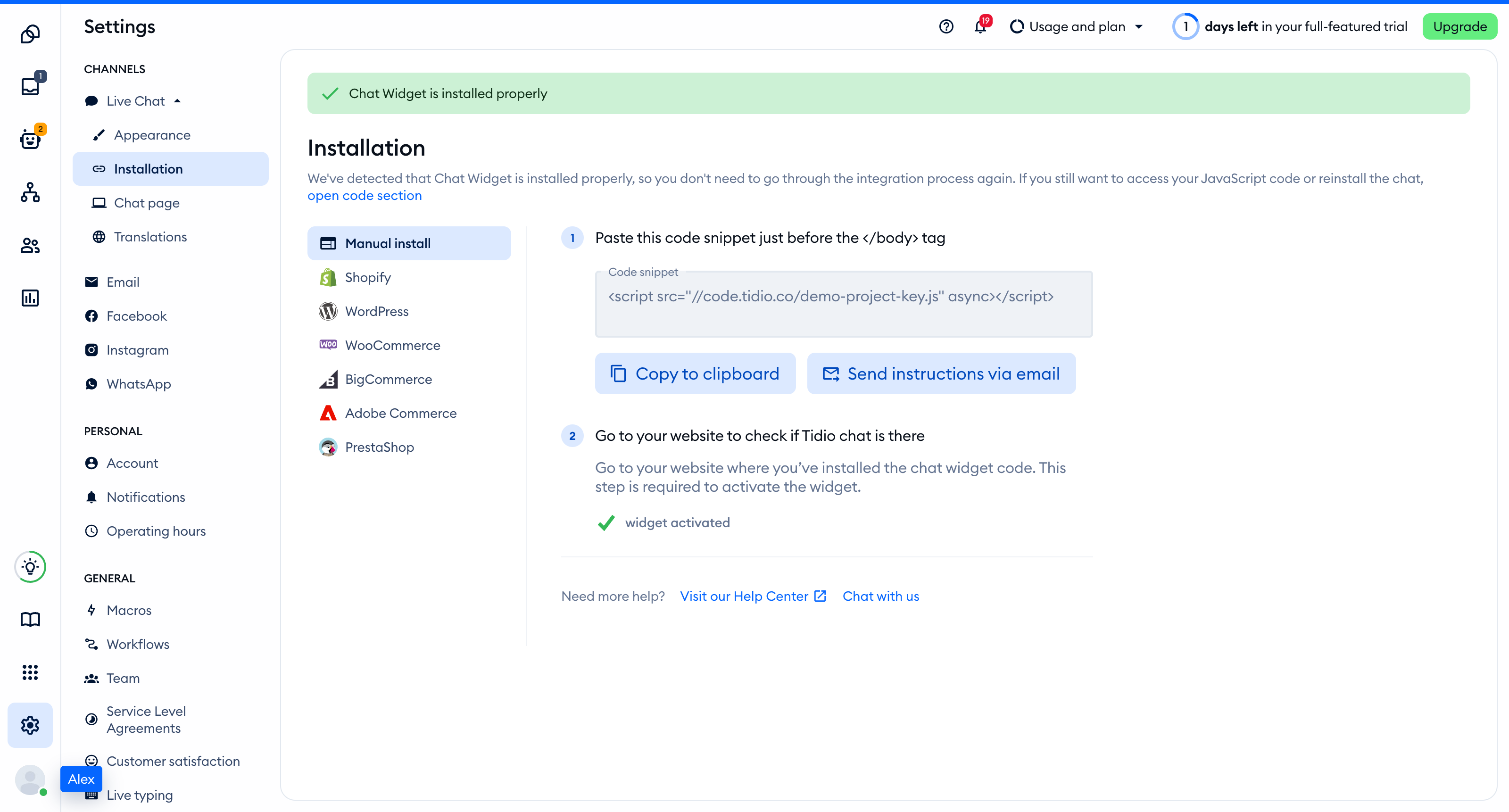
Silent walkthrough. Opening Settings > Live Chat > Installation, choosing Manual install and copying the code snippet.
## Copy your Tidio code
1. Log in to your Tidio panel.
2. Go to **Settings > Live Chat > Installation**.
3. Choose **Manual install**.
4. Click **Copy to clipboard**.
Your code has this form. Use the code you copied, or replace ` YOUR_PUBLIC_KEY ` with your project's Public key:
```
```
## Add the code to Webflow
Webflow allows custom code with a Core, Growth, Agency or Freelancer Workspace, or an active Site plan. You need the Site manager or Designer role to add it.
1. Open your site's **Site settings**.
2. Select the **Custom code** tab.
3. Paste the complete Tidio script into **Footer code**. Keep any unrelated code already in that field.
4. Click **Save changes**.
5. Publish your site to make the code live.
Webflow places **Footer code** before the closing ` ` tags.
For Webflow's field descriptions and access requirements, see [Custom code in head and body tags](https://help.webflow.com/hc/en-us/articles/33961357265299-Custom-code-in-head-and-body-tags).
## Check the installation
Open your site in a regular browser window. The chat widget appears in the corner of the page and stays there when you move between pages. Headless and automated browsers may not show the widget, so do not rely on them for this check.
Loading a page with the widget is what activates it. After that, **Settings > Live Chat > Installation** in your Tidio panel says **Chat Widget is installed properly**.
Check the published site after saving and publishing your Webflow changes.
## Troubleshooting
- If the widget appears on only one page, check whether you pasted it in **Page settings**. Move that installation to **Footer code** in **Site settings** for site-wide use.
- If the published site has not changed, click **Save changes** in the custom code settings and publish again. Saving code alone does not put it on the live site.
- If you see two widgets or duplicate script requests, remove the extra Tidio installation. Keep one script in the site-wide footer and remove copies from individual pages.
- If you cannot add custom code, check your Webflow Workspace or Site plan and your role. The access requirements above apply to Webflow's custom code fields.
- If the widget does not load, check the script address. Replace ` YOUR_PUBLIC_KEY ` with the Public key for the Tidio project you want to use.
- If the code appears as visible text on your page, remove it from the page content. Paste the complete script in **Footer code** instead.
## Further reading
- [Install Tidio on your website](https://help.tidio.com/articles/install-website/)
- [Customize your chat widget](https://help.tidio.com/articles/customize-widget/)
- [Uninstall Tidio](https://help.tidio.com/articles/uninstall-tidio/)
` tag on every page. Use this site-wide field rather than adding the script in each page's settings.
Paste only the script, including its opening and closing tags. Do not wrap it in ` `, `