# Install Tidio on Laravel
Section: Install Tidio
Description: Add Tidio to a Laravel Blade layout, identify signed-in visitors and hide the widget on checkout pages with full-page navigation.
Verified against Tidio panel 12.331.0
Last updated: 2026-11-19
Source: https://help.tidio.com/articles/install-laravel/
Add Tidio to your Laravel site through a shared Blade layout. You do not need a package for Tidio. This guide uses full-page navigation. Checked with Laravel 13.43.0, PHP 8.4.27 and Livewire 4.4.8.
**In this article, you'll learn:**
- [How to find your Public key](https://help.tidio.com/articles/install-laravel/#public-key)
- [How to add the widget to Laravel](https://help.tidio.com/articles/install-laravel/#install)
- [How to check the installation](https://help.tidio.com/articles/install-laravel/#check)
- [How to identify logged-in visitors](https://help.tidio.com/articles/install-laravel/#identify-visitors)
- [How to hide the widget on some pages](https://help.tidio.com/articles/install-laravel/#hide-on-pages)
- [How to troubleshoot the installation](https://help.tidio.com/articles/install-laravel/#troubleshooting)
## Find your Public key
Log in to your Tidio panel and go to **Settings > Developer > Project data**. Click the **Public key** field to select its value, then copy it.
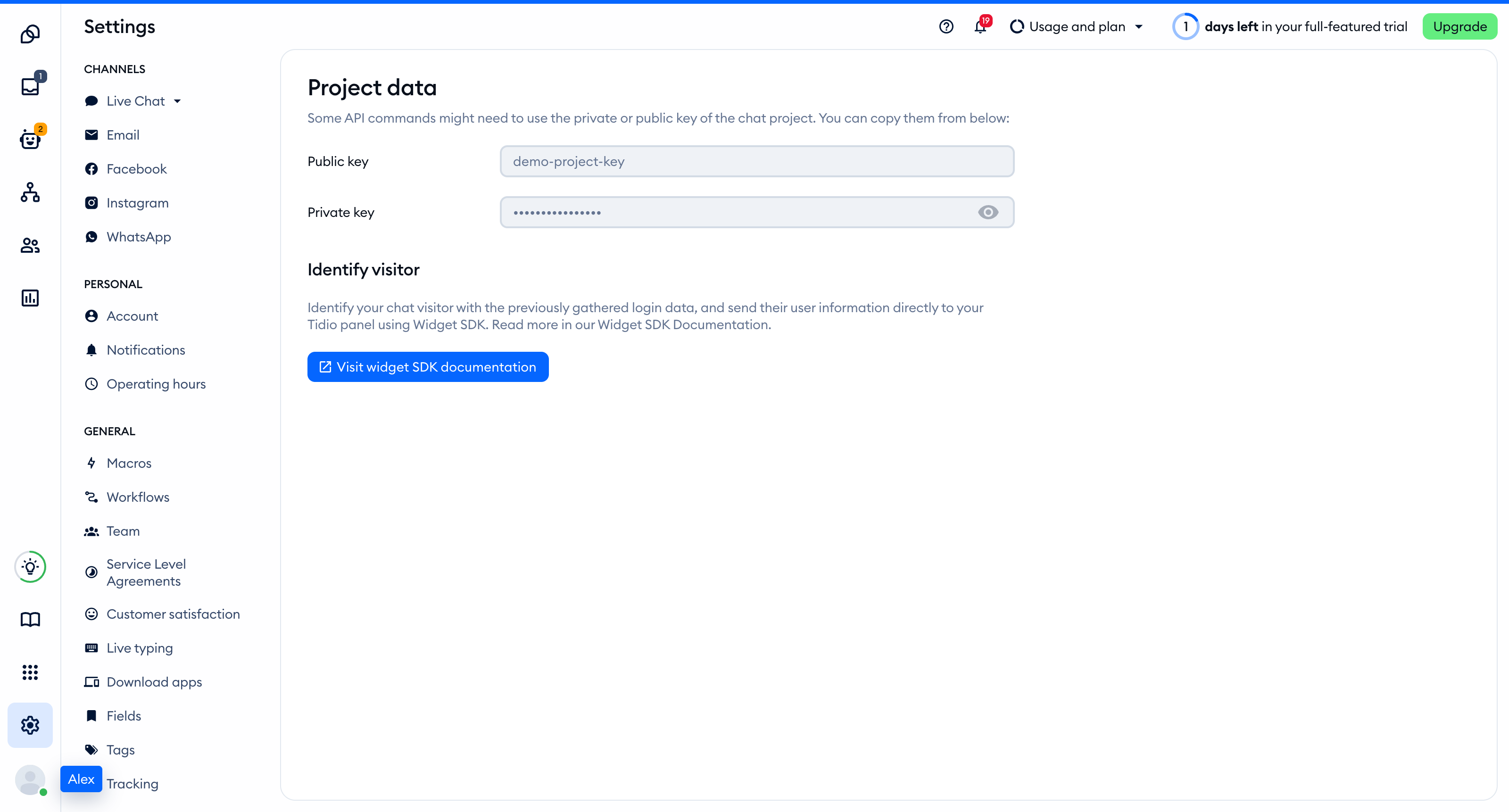
The Public key is part of the script address that every visitor's browser loads, so you can keep it in front-end code. The private key on the same page is different: never put it in your website.
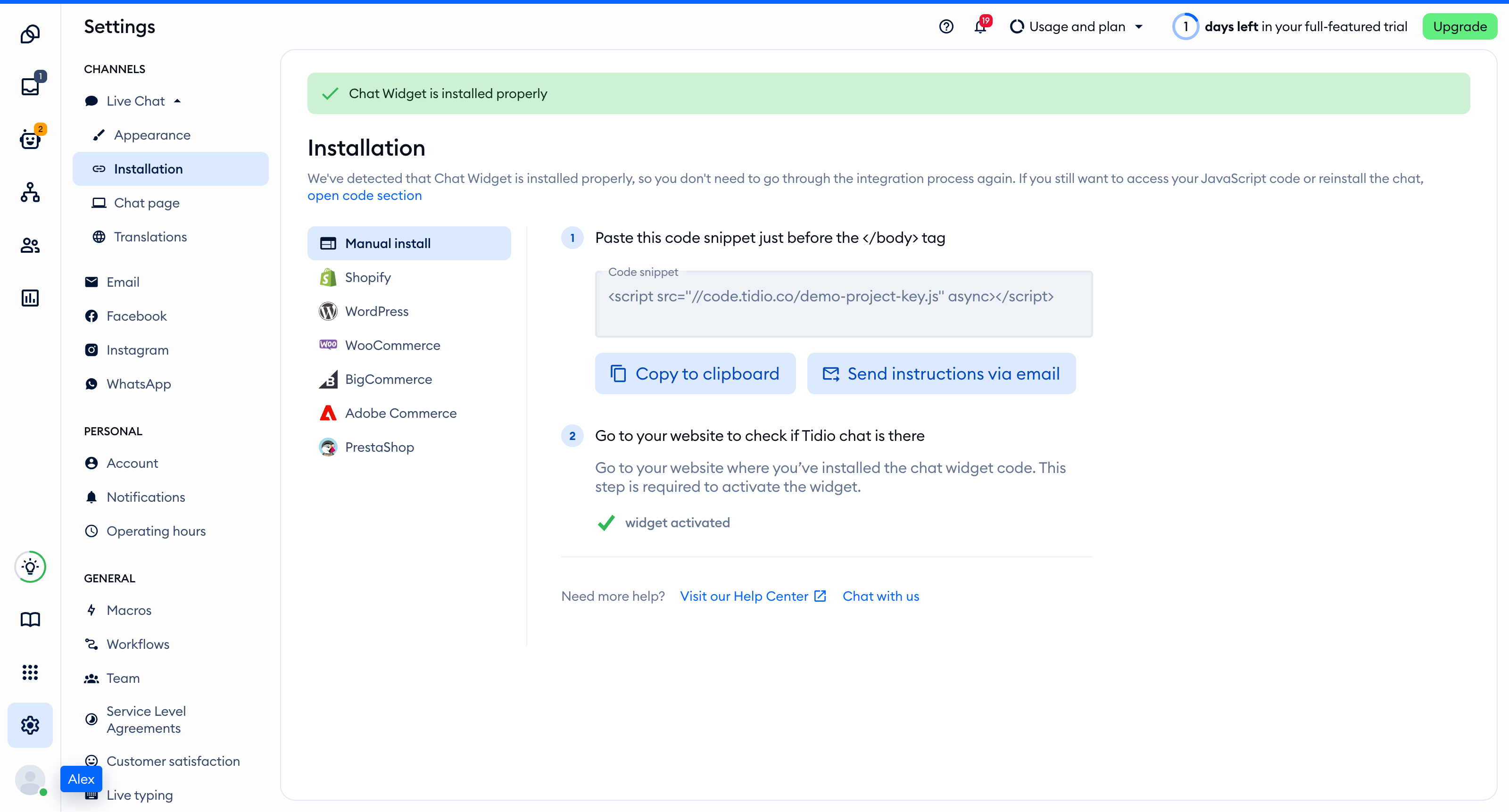
You'll find the same key inside the installation code in **Settings > Live Chat > Installation**, under **Manual install**:
```
```
## Add the widget to Laravel
Set ` TIDIO_PUBLIC_KEY ` in your project's ` .env ` or deployment environment. This is the Public key, not a secret:
```
TIDIO_PUBLIC_KEY=YOUR_PUBLIC_KEY
```
Add this entry inside the array returned by ` config/services.php `. Keep your other service settings:
```
'tidio' => [
'key' => env('TIDIO_PUBLIC_KEY'),
],
```
Put this script just before the closing body tag in the Blade layout shared by your pages:
```
```
A fresh Laravel application starts with ` resources/views/welcome.blade.php `, not a shared layout. Add a shared layout for your pages if you do not have one. The examples below use ` resources/views/layouts/app.blade.php `, which is also the layout generated by ` php artisan livewire:layout `.
In the Livewire starter kit's sidebar layout, the body belongs to ` resources/views/layouts/app/sidebar.blade.php `. Add the script there instead, and add it to any other outer layout that serves your public pages. Do not duplicate it in the inner layout or individual pages.
Use ordinary links on pages that load Tidio. Remove ` wire:navigate ` and ` wire:navigate.hover ` from those links, and use full-page redirects rather than Livewire redirects with ` navigate: true `:
```
```
[Livewire navigation](https://livewire.laravel.com/docs/4.x/navigate) replaces the page body without a full reload. With Laravel 13.43.0 and Livewire 4.4.8, the widget disappears after navigation even when the loader uses ` @persist ` and ` data-navigate-once `. Use plain links so each page loads the widget once.
After changing the key, run ` php artisan config:clear ` during development. In production, rebuild the configuration cache with ` php artisan config:cache `. Keep ` env() ` in configuration files and use ` config() ` in Blade.
If an AI coding assistant edits this project for you, give it the prompt from [Install Tidio with an AI coding agent](https://help.tidio.com/articles/install-ai-coding-agents/).
## Check the installation
Open your site in a regular browser window. The chat widget appears in the corner of the page and stays there when you move between pages. Headless and automated browsers may not show the widget, so do not rely on them for this check.
Loading a page with the widget is what activates it. After that, **Settings > Live Chat > Installation** in your Tidio panel says **Chat Widget is installed properly**.
With full-page navigation, each page loads its own widget in a new document. Check every layout that your visitors can reach.
[Video](https://help.tidio.com/article-media/install-laravel/walkthrough.mp4)
Silent walkthrough. A demo Laravel site with the Tidio chat widget in the corner. Each page loads the widget, and the Checkout page hides it.
## Identify logged-in visitors
In your shared layout, add this block immediately before the Tidio script. It reads your authenticated user on the server and sets ` document.tidioIdentify ` only for signed-in visitors. ` Js::from ` escapes the data for JavaScript in HTML:
```
@auth
@php
$tidioVisitor = [
'distinct_id' => (string) auth()->id(),
'email' => auth()->user()->email,
'name' => auth()->user()->name,
];
@endphp
@endauth
```
Never share a cached HTML response containing a visitor's identity with other visitors. Initial identification can merge conversations for the same visitor.
If a visitor logs in without a full-page reload, call ` setVisitorData ` from your login handler after the widget's ready event. Pass the current user's data from your authenticated login response. This updates visitor data but does not merge conversations:
```
window.tidioChatApi.setVisitorData({
email: user.email,
name: user.name,
});
```
After logout, remove the identification data before resetting the widget. Call this from your logout handler after the widget is ready, before another person uses the browser:
```
delete document.tidioIdentify;
window.tidioChatApi?.resetVisitor();
```
## Hide the widget on some pages
Add this inline script before the Tidio script in the shared layout. It hides the widget on ` /checkout ` and ` /checkout/ ` and shows it elsewhere. Each full-page navigation installs its own ready callback:
```
```
Hiding the widget does not stop Flows from triggering. To load the widget only on a list of addresses instead, see [Show the widget only on specific pages](https://help.tidio.com/articles/show-widget-only-on-specific-pages/).
## Troubleshooting
- If the widget disappears after a link click, remove Livewire navigation from the links and redirects on these pages so the browser loads a new document.
- If the widget loads twice, keep one Tidio script in the outer layout, not another copy in each page or Livewire component.
- If the script address has the wrong key or no key, check ` TIDIO_PUBLIC_KEY `, the ` services.tidio.key ` configuration entry and your deployment's configuration cache.
- If the browser reports a Content Security Policy error, allow Tidio's domains and authorize the inline scripts with a nonce or hash. See [Content Security Policy guidance](https://help.tidio.com/articles/install-ai-coding-agents/#content-security-policy).
## Further reading
- [Install Tidio on your Website](https://help.tidio.com/articles/install-website/)
- [Widget SDK](https://help.tidio.com/articles/widget-sdk/)
- [Laravel Blade templates](https://laravel.com/docs/13.x/blade)
- [Livewire navigation](https://livewire.laravel.com/docs/4.x/navigate)