# Install Tidio on Hugo
Section: Install Tidio
Description: Add Tidio to your Hugo site with a shared partial, identify signed-in visitors and hide the chat widget on checkout pages.
Verified against Tidio panel 12.331.0
Last updated: 2026-11-19
Source: https://help.tidio.com/articles/install-hugo/
Add Tidio to your Hugo site with a shared partial and a site parameter. You do not need a package for Tidio. Checked with Hugo 0.170.1.
**In this article, you'll learn:**
- [How to find your Public key](https://help.tidio.com/articles/install-hugo/#public-key)
- [How to add the widget to Hugo](https://help.tidio.com/articles/install-hugo/#install)
- [How to check the installation](https://help.tidio.com/articles/install-hugo/#check)
- [How to identify logged-in visitors](https://help.tidio.com/articles/install-hugo/#identify-visitors)
- [How to hide the widget on some pages](https://help.tidio.com/articles/install-hugo/#hide-on-pages)
- [How to troubleshoot the installation](https://help.tidio.com/articles/install-hugo/#troubleshooting)
## Find your Public key
Log in to your Tidio panel and go to **Settings > Developer > Project data**. Click the **Public key** field to select its value, then copy it.
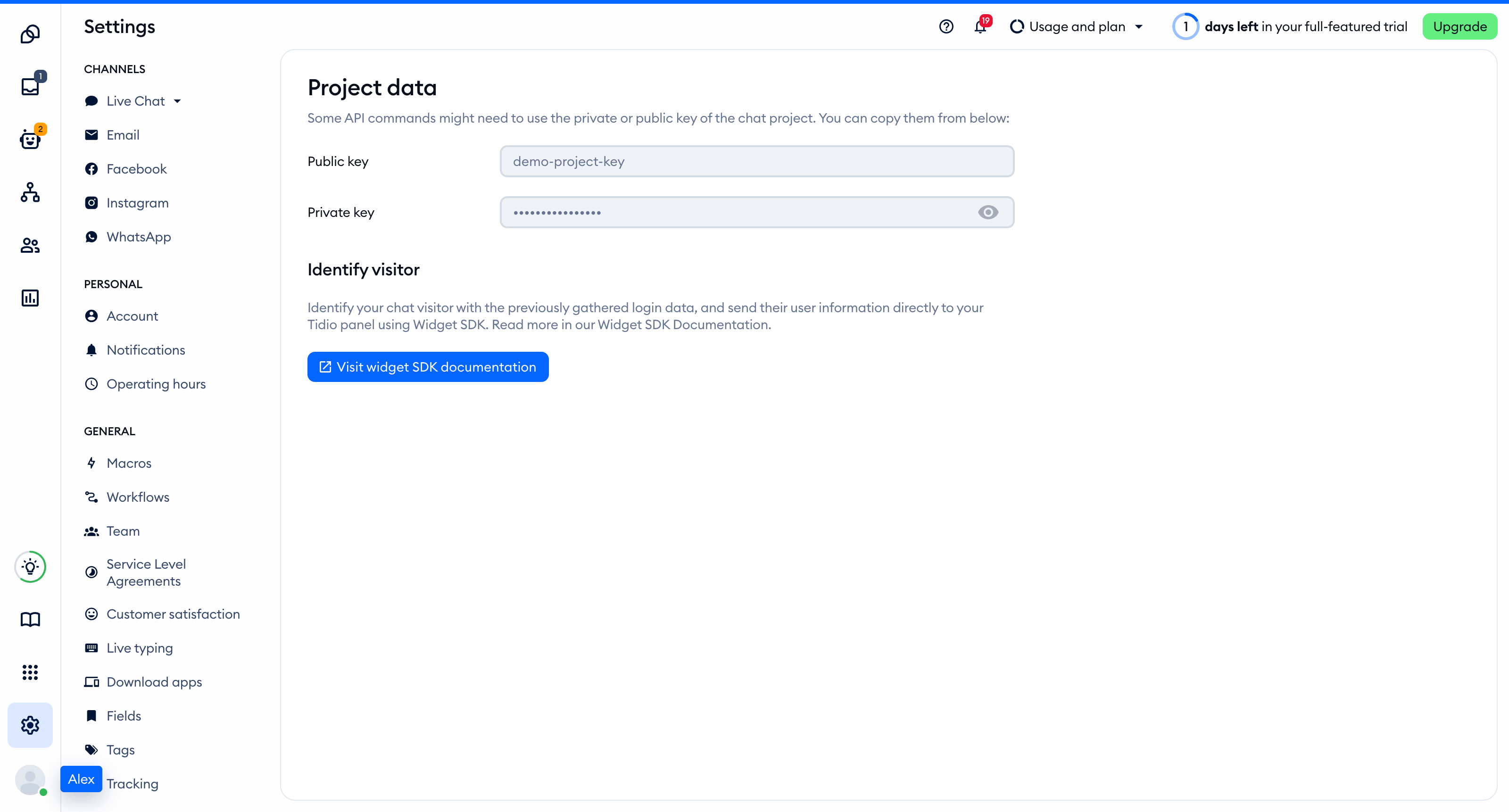
The Public key is part of the script address that every visitor's browser loads, so you can keep it in front-end code. The private key on the same page is different: never put it in your website.
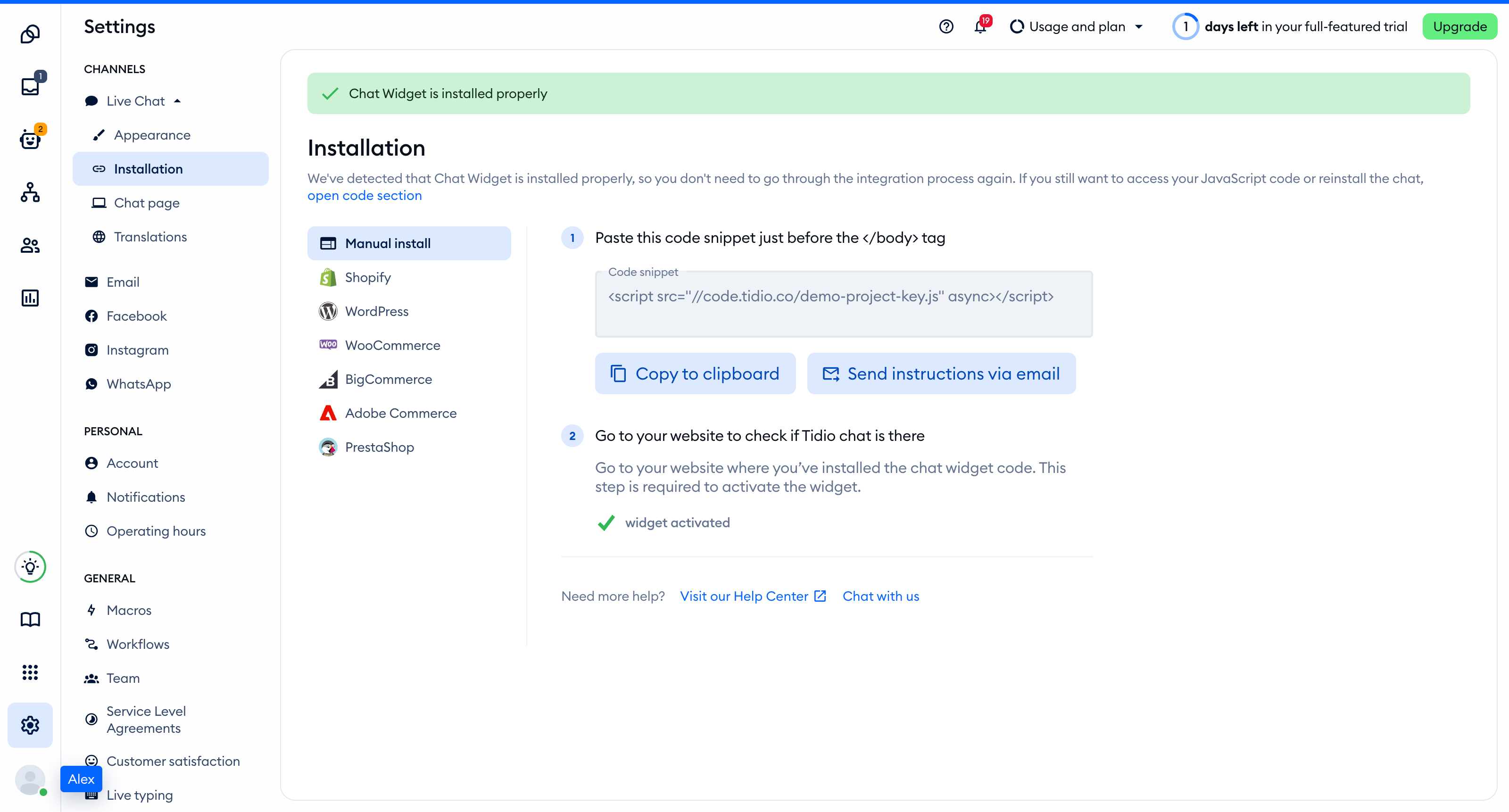
You'll find the same key inside the installation code in **Settings > Live Chat > Installation**, under **Manual install**:
```
```
## Add the widget to Hugo
In your project's ` hugo.toml `, add ` tidioKey ` under ` [params] `. If that table already exists, add the key to it instead of creating another table:
```
[params]
tidioKey = 'YOUR_PUBLIC_KEY'
```
Replace the placeholder with your Public key, which is safe to include in the built site. For deployment builds, you can override this parameter with the ` HUGO_PARAMS_TIDIOKEY ` environment variable.
Create ` layouts/_partials/tidio.html ` in your project with this code:
```
```
Add the partial call just before ` ` in ` layouts/baseof.html `. Keep your existing head elements, blocks and other layout content:
```
{{ partial "tidio.html" . }}
```
These paths follow Hugo's current template structure. If you use a theme, copy the base template it actually uses into the same relative location under your project's ` layouts/ `, then add the call there. Your project overrides a theme template with the same path. Do not edit the downloaded theme itself.
A base template only applies to templates built from ` define ` actions. Check the home page and regular pages. If a theme uses separate base templates or complete standalone page templates, add the partial once to each applicable HTML template, not twice to a page.
Hugo generates static files. With ordinary links, each page opens a new document and loads its own widget once. This guide uses full-page navigation. If your theme adds a client-side router or page-swapping library, disable that feature using the theme's documented settings before using this installation.
Run ` hugo --minify `, then deploy the generated ` public/ ` directory. If you configure a different output directory, deploy that directory instead. Rebuild and redeploy whenever you change the key or partial.
If an AI coding assistant edits this project for you, give it the prompt from [Install Tidio with an AI coding agent](https://help.tidio.com/articles/install-ai-coding-agents/).
## Check the installation
Open your site in a regular browser window. The chat widget appears in the corner of the page and stays there when you move between pages. Headless and automated browsers may not show the widget, so do not rely on them for this check.
Loading a page with the widget is what activates it. After that, **Settings > Live Chat > Installation** in your Tidio panel says **Chat Widget is installed properly**.
On your Hugo site, each new page loads a new widget rather than preserving the previous document's widget.
[Video](https://help.tidio.com/article-media/install-hugo/walkthrough.mp4)
Silent walkthrough. A demo Hugo site with the Tidio chat widget in the corner. Each page loads the widget, and the Checkout page hides it.
## Identify logged-in visitors
Hugo has no visitor session at build time. Never put a visitor's identity in front matter, site parameters or generated HTML, which you serve to everyone. Use your own browser authentication code to obtain the signed-in visitor.
Replace the original script in ` layouts/_partials/tidio.html ` with this loader. After your authentication code resolves the session on each page, call ` startTidio(user) ` with the current visitor's ` distinct_id `, ` email ` and ` name `, or ` null ` for a signed-out visitor. Pass an object from your authentication code, not JavaScript built by concatenating user data. Never pass session tokens.
```