# Install Tidio with an AI coding agent
Section: Install Tidio
Description: Paste one prompt into your AI coding tool to add the Tidio chat widget, and point the tool at Tidio's documentation for AI agents.
Verified against Tidio panel 12.331.0
Last updated: 2026-11-18
Source: https://help.tidio.com/articles/install-ai-coding-agents/
An AI coding agent can add the Tidio chat widget to your site from one prompt. This article has that prompt, the rules the agent has to follow, and the addresses where it can read Tidio's documentation. It works in any tool that edits code from a prompt, for example Codex, GitHub Copilot or Windsurf.
These tools have their own guides: [Claude Code](https://help.tidio.com/articles/install-claude-code/), [Cursor](https://help.tidio.com/articles/install-cursor/), [Lovable](https://help.tidio.com/articles/install-lovable/), [Bolt](https://help.tidio.com/articles/install-bolt/), [v0](https://help.tidio.com/articles/install-v0/) and [Replit](https://help.tidio.com/articles/install-replit/).
**In this article, you'll learn:**
- [How to find your Public key](https://help.tidio.com/articles/install-ai-coding-agents/#public-key)
- [How to ask an AI coding agent to add the widget](https://help.tidio.com/articles/install-ai-coding-agents/#prompt)
- [How to tell whether the agent installed Tidio correctly](https://help.tidio.com/articles/install-ai-coding-agents/#rules)
- [How to find the right file in your framework](https://help.tidio.com/articles/install-ai-coding-agents/#frameworks)
- [How to give the agent Tidio's documentation](https://help.tidio.com/articles/install-ai-coding-agents/#docs-for-ai)
- [How to allow Tidio in a Content Security Policy](https://help.tidio.com/articles/install-ai-coding-agents/#content-security-policy)
- [How to check the installation](https://help.tidio.com/articles/install-ai-coding-agents/#check)
- [How to fix common mistakes](https://help.tidio.com/articles/install-ai-coding-agents/#troubleshooting)
[Video](https://help.tidio.com/article-media/install-ai-coding-agents/walkthrough.mp4)
Silent walkthrough. Open Developer settings and select your project's Public key.
## Find your Public key
Log in to your Tidio panel and go to **Settings > Developer > Project data**. Click the **Public key** field to select its value, then copy it.
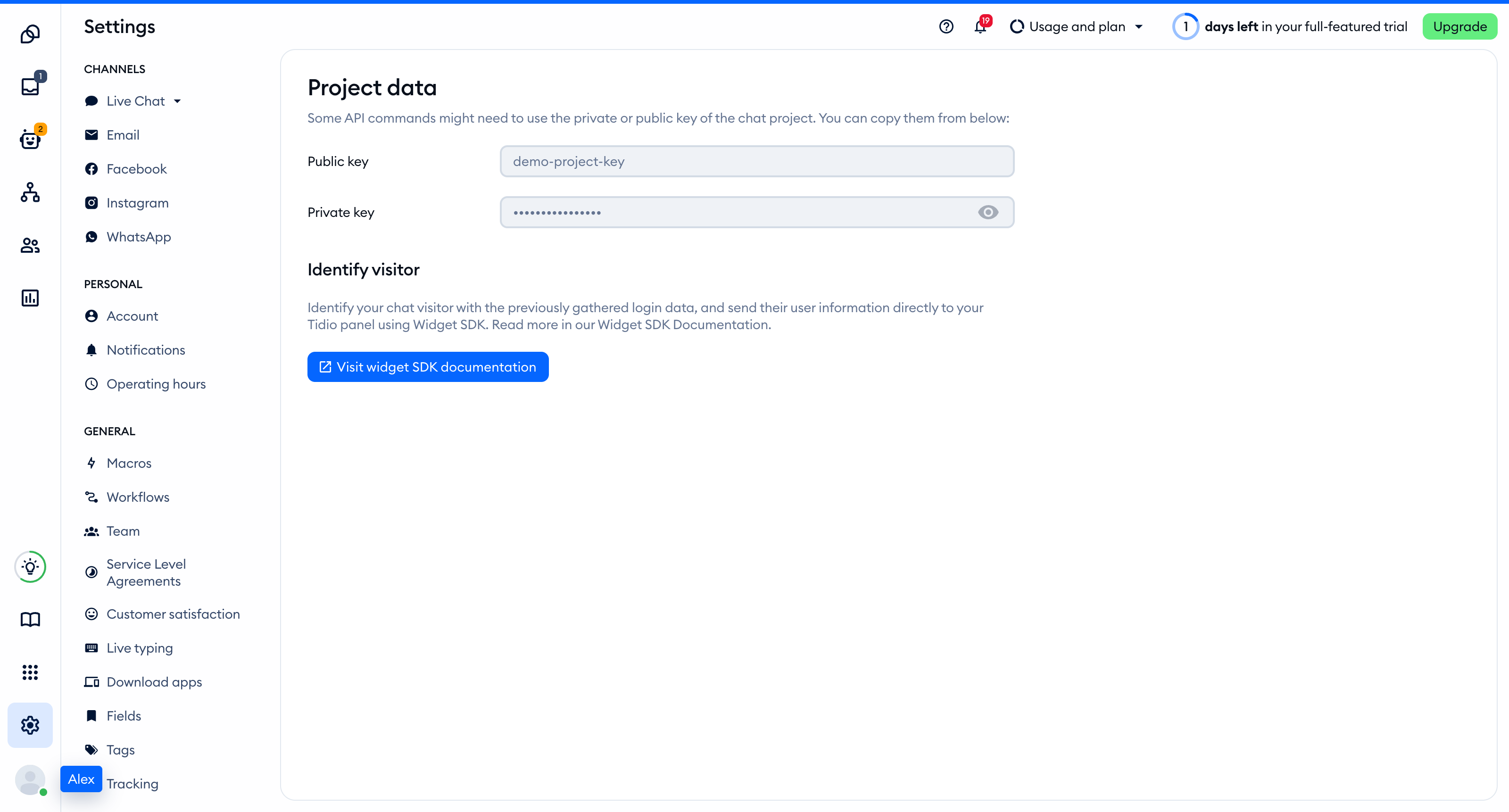
The Public key is part of the script address that every visitor's browser loads, so you can keep it in front-end code. The private key on the same page is different: never put it in your website.
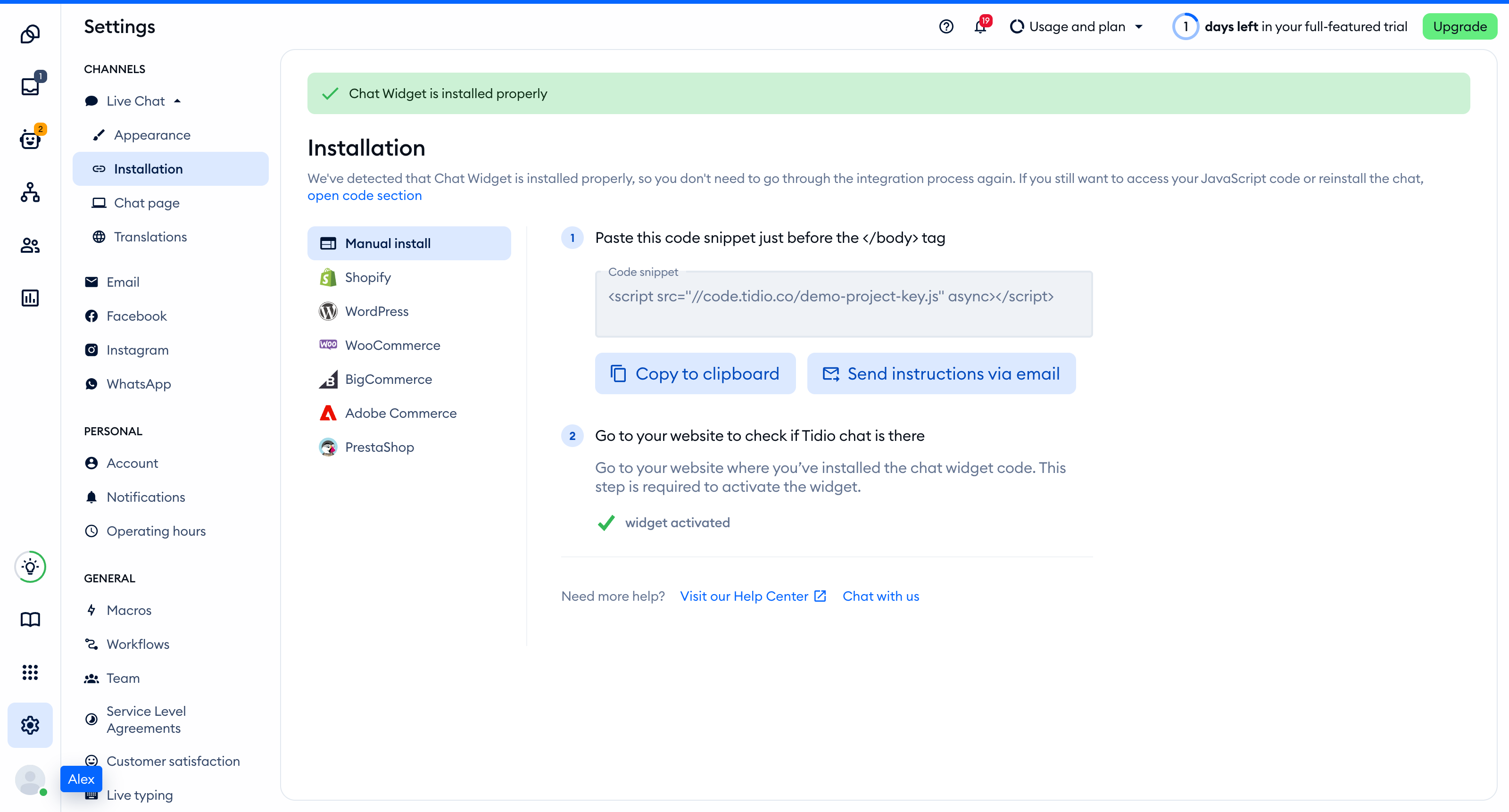
You'll find the same key inside the installation code in **Settings > Live Chat > Installation**, under **Manual install**:
```
```
## Ask the agent to add the widget
Replace ` YOUR_PUBLIC_KEY ` with your Public key, then paste this prompt into your AI coding tool:
```
Add the Tidio live chat widget to this project.
1. Load this script once on every page, at the end of the body, with async:
2. Put it in the root HTML document or the root layout, so it loads once and stays loaded during client-side navigation. Do not add it to single pages or to a component that mounts more than once.
3. Do not install an npm package for Tidio. The script tag is the whole installation.
4. Do not use window.tidioChatApi on the server. Use it only in the browser, after the "tidioChat-ready" event fires on document.
5. Change nothing else, then tell me which file you edited.
Reference: https://help.tidio.com/articles/install-ai-coding-agents/
```
Read the change before you accept it. It should add one script tag, or one script component, to one file.
## Rules for a correct installation
This section is written for the agent as much as for you. An installation is correct when all of these are true:
- The page loads ` https://code.tidio.co/YOUR_PUBLIC_KEY.js ` exactly once, with ` async `, on every page where the chat should appear.
- The script is in the root HTML document or the root layout, not in a page or a component that mounts more than once. The end of the body is the usual place. React moves an async script into the head, which also works. In a single-page app the script loads on the first page view and stays loaded while the visitor moves between routes.
- The project has no new dependency. You do not need a package or any external library.
- The code contains the Public key only. The private key from **Settings > Developer > Project data** never goes into front-end code.
- Code that uses ` window.tidioChatApi ` or ` document.tidioIdentify ` runs in the browser only, never during server rendering.
The widget script defines ` window.tidioChatApi `. Code that has to wait for the chat uses this pattern:
```
function onTidioChatApiReady() {
// The chat has loaded. Call window.tidioChatApi methods here.
}
if (window.tidioChatApi) {
window.tidioChatApi.on('ready', onTidioChatApiReady);
} else {
document.addEventListener('tidioChat-ready', onTidioChatApiReady);
}
```
To tell Tidio who a logged-in visitor is, set ` document.tidioIdentify ` before the Tidio script loads. Every field is optional:
```
document.tidioIdentify = {
distinct_id: 'unique_id', // the visitor's ID in your system
email: 'contact@mail',
name: 'John Doe',
phone: '+44 2032897807',
};
```
When a visitor logs out on a shared browser, remove the identify data first and then reset the widget:
```
delete document.tidioIdentify;
window.tidioChatApi.resetVisitor();
```
The [Widget SDK](https://help.tidio.com/articles/widget-sdk/) article lists the other methods, such as ` open() `, ` hide() ` and ` show() `.
## Where the script goes in each framework
Each guide has the complete code, including how to identify visitors and how to hide the widget on some routes.
| Framework | File that loads the script | Guide |
| --- | --- | --- |
| Next.js | ` app/layout.tsx ` | [Install Tidio on Next.js](https://help.tidio.com/articles/install-nextjs/) |
| React with Vite | ` index.html ` | [Install Tidio on React](https://help.tidio.com/articles/install-react/) |
| React Router and Remix | ` app/root.tsx ` | [Install Tidio on React Router and Remix](https://help.tidio.com/articles/install-react-router/) |
| TanStack Start | ` src/routes/__root.tsx ` | [Install Tidio on TanStack Start](https://help.tidio.com/articles/install-tanstack-start/) |
| Vue | ` index.html ` | [Install Tidio on Vue](https://help.tidio.com/articles/install-vue/) |
| Nuxt | ` nuxt.config.ts ` | [Install Tidio on Nuxt](https://help.tidio.com/articles/install-nuxt/) |
| SvelteKit | ` src/app.html ` | [Install Tidio on SvelteKit](https://help.tidio.com/articles/install-sveltekit/) |
| Astro | ` src/layouts/Layout.astro ` | [Install Tidio on Astro](https://help.tidio.com/articles/install-astro/) |
| Angular | ` src/index.html ` | [Install Tidio on Angular](https://help.tidio.com/articles/install-angular/) |
| Gatsby | ` gatsby-ssr.tsx ` | [Install Tidio on Gatsby](https://help.tidio.com/articles/install-gatsby/) |
| SolidStart | ` src/entry-server.tsx ` | [Install Tidio on SolidStart](https://help.tidio.com/articles/install-solidstart/) |
| Qwik | ` src/root.tsx ` | [Install Tidio on Qwik](https://help.tidio.com/articles/install-qwik/) |
| Eleventy | ` _includes/base.njk ` | [Install Tidio on Eleventy](https://help.tidio.com/articles/install-eleventy/) |
| Plain HTML or another stack | The file with the closing ` ` tag | [Install Tidio on your Website](https://help.tidio.com/articles/install-website/#javascript-code) |
## Give the agent Tidio's documentation
An agent that reads the current guide makes fewer mistakes than one that works from memory. Tidio publishes its help articles in formats made for AI tools:
- The Tidio Help Center has a read-only MCP server at ` https://help.tidio.com/mcp `. It uses Streamable HTTP and needs no login. Its tools are ` search_articles `, ` get_article `, ` list_articles `, ` list_sections ` and ` get_section `.
- ` https://help.tidio.com/llms.txt ` lists every help article with a one-line summary. ` https://help.tidio.com/llms-full.txt ` has the full text of all of them.
- Every article is available as Markdown. Add ` index.md ` to its address, for example ` https://help.tidio.com/articles/install-nextjs/index.md `.
- ` https://developers.tidio.com/llms.txt ` lists the Widget SDK and API documentation.
If your tool connects to MCP servers, add the Help Center server and tell the agent to search it for the guide to your framework. If it does not, paste the Markdown address of the guide into the prompt.
## Allow Tidio in a Content Security Policy
If your site sends a Content Security Policy header, the browser blocks the widget until the policy allows Tidio's hosts. Add these entries to your policy:
```
connect-src sentry-new.tidio.co socket.tidio.co wss://socket.tidio.co uploads.tidio.com;
img-src cdnjs.cloudflare.com unpkg.com data: code.tidio.co avatars.tidiochat.com tidio-images-messenger.s3.us-east-1.amazonaws.com;
media-src code.tidio.co;
script-src code.tidio.co;
style-src 'unsafe-inline';
font-src code.tidio.co data:;
```
The list can change. The current one is in the [Content Security Policy](https://developers.tidio.com/docs/widget-security-policy) page of the developer documentation. For an inline script, such as the one that sets ` document.tidioIdentify `, use a nonce or a hash in ` script-src `.
## Check the installation
Open your site in a regular browser window. The chat widget appears in the corner of the page and stays there when you move between pages. Headless and automated browsers may not show the widget, so do not rely on them for this check.
Loading a page with the widget is what activates it. After that, **Settings > Live Chat > Installation** in your Tidio panel says **Chat Widget is installed properly**.
## Troubleshooting
- The agent installed a package. Remove it and the code that imports it, then add the script tag from the prompt.
- The widget appears twice, or the browser requests the script more than once. The agent added the script to a page or to a component as well as to the layout. Keep one copy, in the root document or root layout.
- The build or the server fails with ` window is not defined ` or ` document is not defined `. Code that uses ` window.tidioChatApi ` or ` document.tidioIdentify ` ran on the server. Move it into code that runs only in the browser.
- The widget does not appear and the browser console reports a Content Security Policy error. Add the entries from [Allow Tidio in a Content Security Policy](https://help.tidio.com/articles/install-ai-coding-agents/#content-security-policy).
- The widget does not appear and the script request fails. Check that the address contains your Public key from **Settings > Developer > Project data** and nothing else.
## Further reading
- [Install Tidio on your Website](https://help.tidio.com/articles/install-website/)
- [Widget SDK](https://help.tidio.com/articles/widget-sdk/)
- [Show Tidio Widget Only on Specific Pages](https://help.tidio.com/articles/show-widget-only-on-specific-pages/)
- [Opening the Chat Widget from a custom button or a link](https://help.tidio.com/articles/open-widget-from-button-or-link/)